When a critical Revit model grinds to a halt—refusing to open, crashing mid-sync, or just behaving erratically—it’s more than an IT hiccup. It’s a production crisis that threatens deadlines, strains team morale, and erodes project margins. The gut reaction is panic, which often leads to repeatedly forcing a sync—a surefire way to bake corruption permanently into the central file.
To recover a corrupted Revit file without compounding the damage, you need a calm, methodical playbook. Corruption is rarely a random event; it's the result of accumulated modeling debt, workflow gaps, and unaddressed warnings. This guide is a technical recovery playbook, written from the field, for BIM managers and production teams who need to restore control when a model fails under pressure.
We'll skip the basic advice like "restart Revit" and focus on real-world corruption scenarios: broken central files, failed worksharing syncs, bloated backups, and unstable families. The core message is simple: recovery isn't about frantic fixes. It's about knowing when to intervene, how to contain the damage, and how to protect the model's integrity.
From Crisis to Control: A Disciplined Approach
Effective recovery begins by shifting from reactive panic to a strategic, controlled process. The immediate goal isn't to force the file open; it's to stabilize the production environment, protect everyone's work, and perform a disciplined diagnosis. Rushing this critical phase almost always guarantees more data loss and extended downtime.
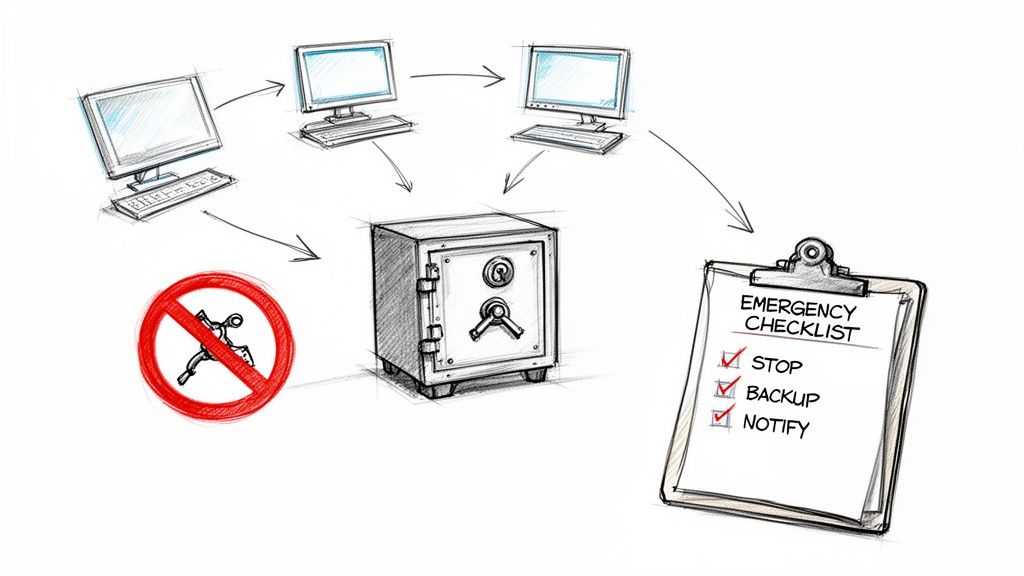
This decision tree outlines a high-level workflow for handling a potentially corrupt Revit file, emphasizing containment first, action second.
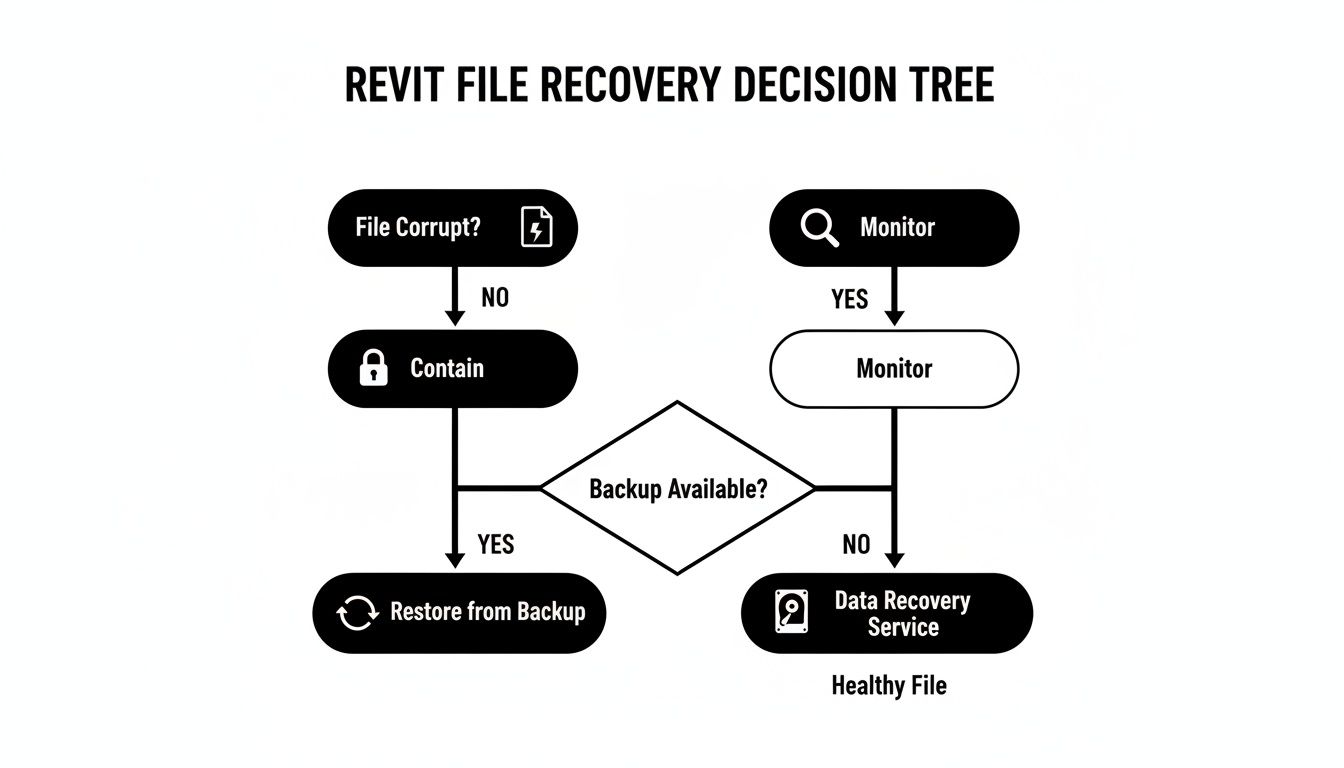
The flowchart makes one thing clear: the first move is a decisive checkpoint—halting production. This single step protects model integrity and prevents well-intentioned but isolated "fixes" from spreading the damage. Integrating these technical protocols into broader sustainable business continuity strategies is what makes a firm resilient.
Field Note: The moment a sync fails twice in a row or a user reports bizarre model behavior, the immediate action is to stop all synchronization. Announce it to the entire team. One user's local problem becomes a project-wide catastrophe if they keep pushing a damaged file to the central model.
This disciplined pause creates a crucial decision window, giving BIM managers the space to execute a controlled recovery. It’s a direct extension of a mature production workflow where data integrity is paramount. Effective file recovery follows the same systematic rigor as robust QA/QC, which we cover in our guide on best practices for version control in BIM projects.
Recognizing the Early Warning Signs of Revit File Corruption
Catastrophic Revit file corruption rarely happens out of the blue. It’s usually the final breakdown after a long period of declining model health. Experienced production teams know that long before a file refuses to open, it sends out subtle but critical warning signs. Learning to spot these symptoms is the first step in shifting from reactive crisis management to proactive model maintenance—a move that’s fundamental to protecting your project margins.
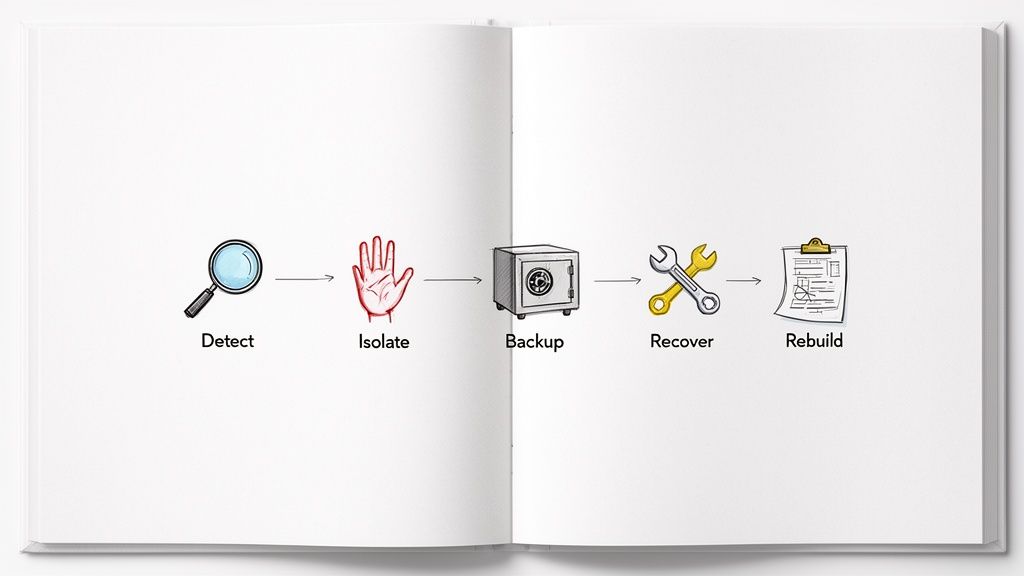
These early indicators often disguise themselves as minor annoyances that teams learn to work around. But make no mistake, they are direct signals of underlying instability. Ignoring them is like driving with the check engine light on—the problem only gets worse, making it much harder to fix Revit model errors later.
Performance Degradation as a Primary Indicator
The most obvious warning sign is a noticeable slowdown in performance. Pay close attention if your team starts reporting any of these trends:
- Longer Open and Save Times: A model that once took two minutes to open now takes ten. This gradual creep is a classic sign of model bloat or an accumulation of errors.
- Slow Sync Times: "Synchronize with Central" operations become progressively slower, even for minor changes. This points directly to Revit central file issues, where the core database is struggling.
- General Sluggishness: Simple actions like opening views, editing families, or even selecting elements start to lag.
This isn't just about aging hardware. A healthy, well-managed model should maintain predictable performance. When performance degrades without a clear reason, it’s time to investigate before you’re forced to recover a Revit file from a backup.
To help connect the dots, here’s a quick rundown of common performance issues and what they might signal.
Corruption Warning Signs and Their Likely Causes
| Symptom (Warning Sign) | Potential Root Cause | Recommended First Action |
|---|---|---|
| Increased Open/Save Times | Model bloat from unpurged families, CAD imports, or accumulating errors. | Run the Purge Unused command and review imported CAD files. |
| Slow "Sync with Central" | Network latency, excessive user worksets, or central file fragmentation. | Check network stability; ask users to relinquish worksets; consider creating a new central file. |
| Lagging View Navigation | Overly complex geometry, excessive detail levels in views, or unmanaged linked files. | Simplify families, use Coarse/Medium detail levels, and check visibility settings on linked models. |
| Frequent "Cannot Edit" Errors | Corrupted families, element ownership conflicts, or a failing central model. | Use the Audit function on open; check the Worksharing Display for element ownership. |
| Unexplained File Size Growth | Imported CAD geometry, too many design options, or corrupt elements taking up excess data. | Clean up design options; use Link CAD instead of Import CAD whenever possible. |
| Growing List of Warnings | Poor modeling practices, unresolved geometric conflicts, or duplicate elements. | Dedicate time to resolving warnings, starting with the most critical ones like "Duplicate Marks." |
Think of this table as your first-response checklist. When your team flags an issue, you have an immediate, actionable step to take instead of just hoping it goes away.
The Problem of Warning Overload
Every BIM manager has seen it: a user opens a model and is greeted by a dialog box with dozens, sometimes hundreds, of warnings. Over time, teams become desensitized and start clicking through them without a second thought. This is a dangerous habit that signals weak template discipline and QA processes.
An unmanaged list of warnings is a clear sign of declining model discipline and a precursor to corruption. While many warnings are minor, some—like elements in slightly off-axis positions or duplicate marks—can signal deeper geometric or database conflicts that destabilize the entire file.
Treating the warnings list as a to-do list for model cleanup is a core part of good QA/QC. If your warnings list is growing unchecked, it's a sign that your model's integrity is at risk. Often, these warnings are symptoms of the kind of hidden geometry errors that break Revit models and can lead to severe data loss if left unresolved.
Unexplained File Size Inflation
A Revit model's file size should grow in proportion to the project's development. When the file size balloons unexpectedly—jumping by 20-30% without a corresponding addition of scope—it’s a major red flag for Revit file corruption.
This kind of bloat is often caused by:
- Unpurged families, materials, and line styles.
- Excessive or overly detailed imported CAD files.
- Countless design options that were never cleaned up.
- Corrupt elements that are taking up an unreasonable amount of data.
This isn't just a storage problem; a bloated file is an unstable file. It puts more strain on your system resources and increases the likelihood of errors during sync and save operations, which can prevent RFIs and improve permitting prep.
Immediate Damage Control for a Corrupting Model
When you suspect a Revit model is corrupt, the absolute worst thing you can do is try to sync it again. That single click can permanently bake the corruption from a local file into the central model, turning one person's headache into a project-wide disaster.
Effective damage control starts with operational discipline, not frantic clicking. The second a user reports a failed sync, bizarre graphical glitches, or an inability to save, the BIM Manager’s first order must be immediate and absolute: Stop all work. Everyone on the project needs to stop synchronizing right away. This is the single most critical step to contain the damage and prevent the Revit file corruption from spreading. It buys you time to diagnose the problem without making things worse.
Create a Secure and Isolated Backup
Before attempting any fix, your top priority is to preserve the project's current state—the good, the bad, and the corrupt. This isn't about relying on nightly server backups. You need a perfect snapshot from the exact moment the problem was discovered.
Start by creating a secure, isolated "quarantine" folder completely separate from the live project directory. In this folder, you need to manually copy:
- The Central Model: Grab the current central file from the server.
- All Recent Local Files: Get every user's local copy from their machine, including their backup folders. Rename each one to include the user's name and the date/time (e.g.,
ProjectX_JSmith_local_2023-10-27_1430.rvt).
This step is non-negotiable. These quarantined files are your insurance policy. If a recovery attempt goes sideways, you have a preserved version of every piece of data to fall back on. Without this, you're risking catastrophic data loss.
Field Note: Don't just copy the files—archive them in a ZIP folder. This simple step prevents anyone from accidentally opening and trying to "fix" one of the quarantined backups, which would defeat the whole purpose of creating a stable snapshot.
Communicate with Clarity and Control
While you're securing the data, clear communication is crucial to prevent panic and stop team members from going rogue. Your team needs to know what’s happening and what you need from them, not feel blamed. The focus must remain on a methodical process of containment and recovery.
Keep your communication simple and direct:
- Acknowledge the Issue: "We've identified a potential issue with the central model."
- State the Immediate Action: "Please stop all work and do not sync until further notice."
- Set an Expectation: "The BIM team is isolating the problem now. We will provide an update in 30 minutes."
This level of control reassures the team that a structured plan is in motion. It prevents the chaos of multiple users trying different fixes, which can quickly lead to more severe Revit central file issues. A calm, methodical approach is also key to preventing the user-error mistakes that often lead to these problems—a topic we cover in our guide on how to avoid common Revit crashes.
Once you've contained the problem, secured all the files, and updated the team, you're ready to start the controlled process needed to recover the Revit model's integrity.
Your Technical Toolkit for Revit Model Recovery
Once damage is contained, it’s time to be methodical. Recovering a corrupt Revit model isn't about frantic clicking; it's a systematic process of diagnosing the problem and preserving data integrity.
Think of it as controlled deconstruction. The goal is to isolate the source of the corruption and carefully rebuild, preserving as much of the project as you can. These are field-tested workflows that provide maximum control over a volatile situation, ensuring operational consistency for your delivery pods.
Start with Detach and Audit: The Foundation of Recovery
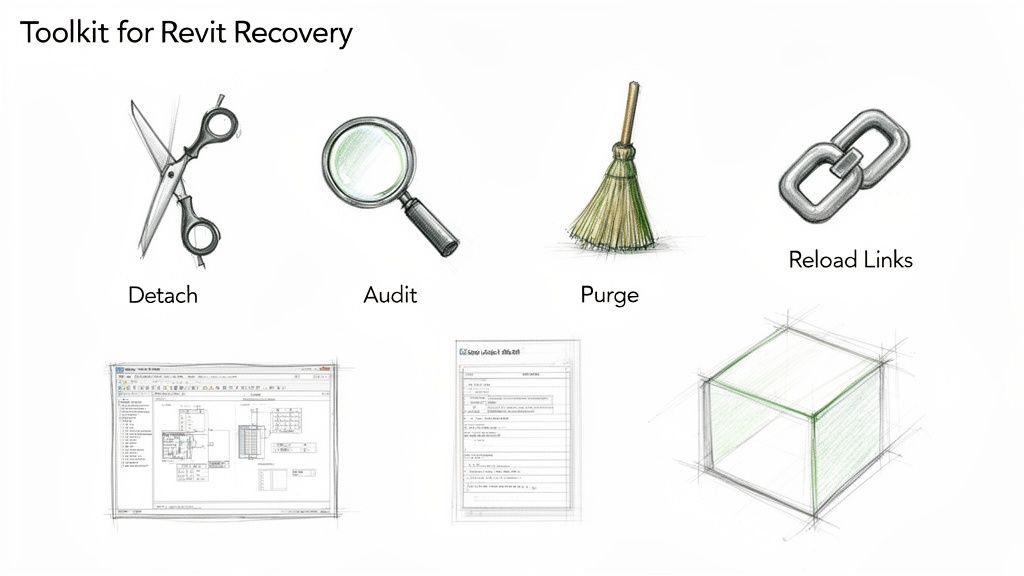
Your first move should always be the Detach from Central with Audit workflow. This is the baseline diagnostic for nearly any corrupt Revit model. It creates a clean, standalone copy of the central file, severing it from its worksharing history while the audit function runs a deep scan of the file’s database to repair internal errors.
Here's how to do it right:
- In Revit, go to the Open dialog and navigate to your central model.
- Select the central model file, but do not double-click it.
- At the bottom of the dialog box, check both the Detach from Central and Audit boxes.
- Click Open. When prompted, always choose to preserve worksets—this keeps your model’s organizational structure intact.
Be patient; this process can take time on large models. Once it's done, immediately use Save As to create a new, clearly named file (like ProjectX_Recovery_Attempt_01.rvt) on your local machine. Never overwrite the original central model.
Isolate Problems with Workset and Link Management
If detaching and auditing fails, or if the new file is still unstable, the corruption is likely trapped within a specific workset, linked file, or corrupt element. The next play is systematic isolation. Instead of trying to open the whole model, you open it with specific parts turned off.
In the Open dialog, use the Specify… option in the "Worksets" dropdown. Start by closing all user-created worksets. If the model opens, you've confirmed the problem is in one of those sets. Repeat the process, opening one workset at a time until the model crashes again. This is how you pinpoint the source of the Revit file corruption.
Corrupt links are another common culprit. A broken DWG or a misbehaving linked Revit model can destabilize your entire host file. Check, reload, and if necessary, remove all linked files. You can often test this by opening the model with all links unloaded to see if stability returns.
Field Note: Never underestimate the destructive potential of a bad CAD import. Bloated, complex, or far-from-origin DWG files are notorious for introducing errors that can lead to file corruption. Always audit and clean CAD files before linking them into Revit.
Surgical Recovery: Transferring Geometry to a Clean Template
Sometimes, a project file is too damaged to repair. The most responsible move is to salvage the critical geometry and data by transferring it into a fresh, clean project template. This isn't a simple copy-paste; it's a meticulous process.
- Open both the corrupted model (if possible) and a new project created from your firm’s standard template.
- Use the Copy to Clipboard and Paste Aligned to Same Place commands to carefully transfer model elements, one level or one category at a time.
- After each transfer, save the new model to ensure it remains stable.
This method lets you rebuild the model without migrating the corruption. It’s labor-intensive, but it offers the highest guarantee of a clean, stable file, protecting project timelines and delivering a predictable result.
Advanced Diagnostics: Extracting Families and Journal Files
Occasionally, the issue is a single corrupt family. You can isolate this by saving the suspicious family out of the project and trying to open and audit the .RFA file on its own. For the most stubborn cases, Revit's journal files (located in C:Users%USERNAME%AppDataLocalAutodeskRevit) log every command and can sometimes point to the exact element ID that caused a crash.
The North American BIM software market, heavily anchored by Revit, is exploding from USD 4,018.7 million in 2025 to a staggering USD 16,000 million by 2035. This growth highlights the urgent need for robust Revit recovery strategies among firms grappling with ever-larger models. Read more about the North America BIM software market outlook on marketresearchfuture.com.
When your own efforts hit a wall, turning to expert data recovery for lost files can be a critical next step. Mastering these recovery techniques is essential for keeping projects on track and ensuring your team can confidently recover Revit models when the pressure is on.
When to Rebuild Instead of Recovering a Revit File
Sometimes the smartest decision a BIM Manager can make is to stop trying to recover the Revit file and start rebuilding. This isn't admitting defeat; it's a strategic move that protects the project schedule and deliverables from further risk. Real margin protection comes from predictability, and a compromised Revit file is the definition of unpredictable.
The goal isn’t just to get the file to open—it's to restore a stable, reliable production environment. If recovery efforts leave you with a model that still feels fragile, you haven’t solved the problem. You've only deferred the next crisis. This decision requires a disciplined risk-benefit analysis: weigh the hours spent on further recovery attempts against the long-term cost of working in an unstable model, which always leads to errors, rework, and RFIs.
Evaluating a 'Recovered' File's Health
How do you know if a recovered model is truly fixed? You need a quick post-recovery QA process. A healthy model should feel solid. If it doesn't, the core database is likely still damaged.
These red flags signal that rebuilding is the smarter path:
- Persistent Errors and Warnings: If the same critical warnings reappear after being cleared, the root cause is still present.
- Ongoing Graphical Glitches: Views that display incorrectly, elements that flicker, or constant regeneration issues are signs of deep-seated problems.
- Unpredictable Behavior: If basic actions like placing a wall or editing a family cause crashes or bizarre results, the model's integrity is compromised.
- Inability to Perform Core Functions: A "recovered" model that still can't reliably sync, print, or export isn't recovered. These are non-negotiable functions for project delivery.
Seeing several of these signs should make the decision clear. The risk of issuing drawings from a zombie model is too high.
Field Note: The single biggest mistake teams make is getting emotionally attached to the recovery process. After spending hours trying to fix a model, it feels like a personal failure to abandon it. But production isn’t about winning a fight with a corrupt file; it’s about protecting the project’s outcome.
Making the Data-Informed Decision to Rebuild
The decision to rebuild should be a checkpoint in your recovery plan, not a desperate last resort. It's a pragmatic choice to guarantee data integrity and return the team to consistent, predictable work. While it feels like a step backward, rebuilding from a clean template using salvaged geometry is often faster and safer than wrestling with a damaged file for days on end.
Autodesk Revit holds a commanding 8.81% market share among over 21,475 companies using CAD software worldwide. It’s a powerful platform, but not invulnerable. Historical data shows file corruption incidents spiked around 15-20% after 2015, coinciding with the release of Revit 2016, which introduced more complex features—and new ways for models to break. You can find more details on Revit's market share on datanyze.com. This context underscores why disciplined protocols for both recovery and rebuilding are essential for production maturity.
A structured rebuild process, like the one we detail in our guide to improving Revit model health, minimizes data loss by methodically transferring elements into a clean container. This approach ensures you don't migrate corruption along with the geometry, which is the essence of a mature BIM workflow.
Common Questions About Revit File Recovery
Even with a solid recovery plan, panic sets in when a model goes down. Production teams under pressure need straight answers, not textbook theories. Here are some of the most common questions we get from firms in the trenches of Revit file corruption, along with what our experience has taught us.
These answers all point back to one core principle: the best way to recover a Revit file is to have workflows that stop it from corrupting in the first place.
Can We Just Restore from Last Night’s Backup?
Restoring from a backup is always an option, but it’s rarely your best first move. You have to do the math on the data loss. If a team of ten has been grinding away for half a day, restoring from last night’s backup means you're throwing out 40 hours of work. That’s a serious hit to any project's budget and schedule.
Before you even think about restoring, always try a controlled recovery of the current central file. If you can save it, you save all that valuable work. Think of backups as your safety net, not your go-to solution. And always, always make a safe copy of the corrupt file before you overwrite it with an older version.
Why Did My Local File Become Corrupt?
Local file corruption almost always comes down to a few usual suspects. An abrupt shutdown of Revit or your machine—think power flicker or the blue screen of death—while the file is writing data is a classic culprit. Another common cause is a flaky network connection to the central model, which leads to incomplete or broken sync attempts.
Sometimes, though, the problem isn't with your local file at all. If the central model has underlying issues, synchronizing with it can pull that corruption right down into your local copy. This creates a nasty domino effect across the team, leading to widespread Revit central file issues.
Field Note: We see a ton of local corruption when people try working on a Revit model over a high-latency VPN without any real network acceleration. The constant lag and potential for dropped packets during a sync create the perfect storm for data integrity failures.
Should I Use the "Recover" Function in BIM 360?
The versioning and recovery features in Autodesk's BIM 360 / ACC platform can be an absolute lifesaver. The "Restore" function lets you roll a cloud model back to a previously synced version, which is fantastic when a bad sync corrupts the live model.
But the same logic from on-premise backups applies here. Restoring to an earlier version means all work done since that version was published is gone. Period. It's a critical decision. You have to weigh the certainty of getting a clean older model against the cost of the work you'll lose. It's a powerful tool for any modern BIM workflow, but it demands the same disciplined thinking as any server recovery. And never initiate a cloud restore without talking to the entire project team first.
At BIM Heroes, we know that having a robust recovery protocol is a cornerstone of predictable project delivery. If your team is constantly battling unstable models and unexpected downtime, it might be time for a more structured approach. We don't sell hours; we sell clarity and reliable systems.
Our Revit Corruption Recovery Checklist is a technical resource that gives your team a repeatable framework for navigating these high-stakes situations. Download it and start building more resilient production systems today.
https://www.bimheroes.com