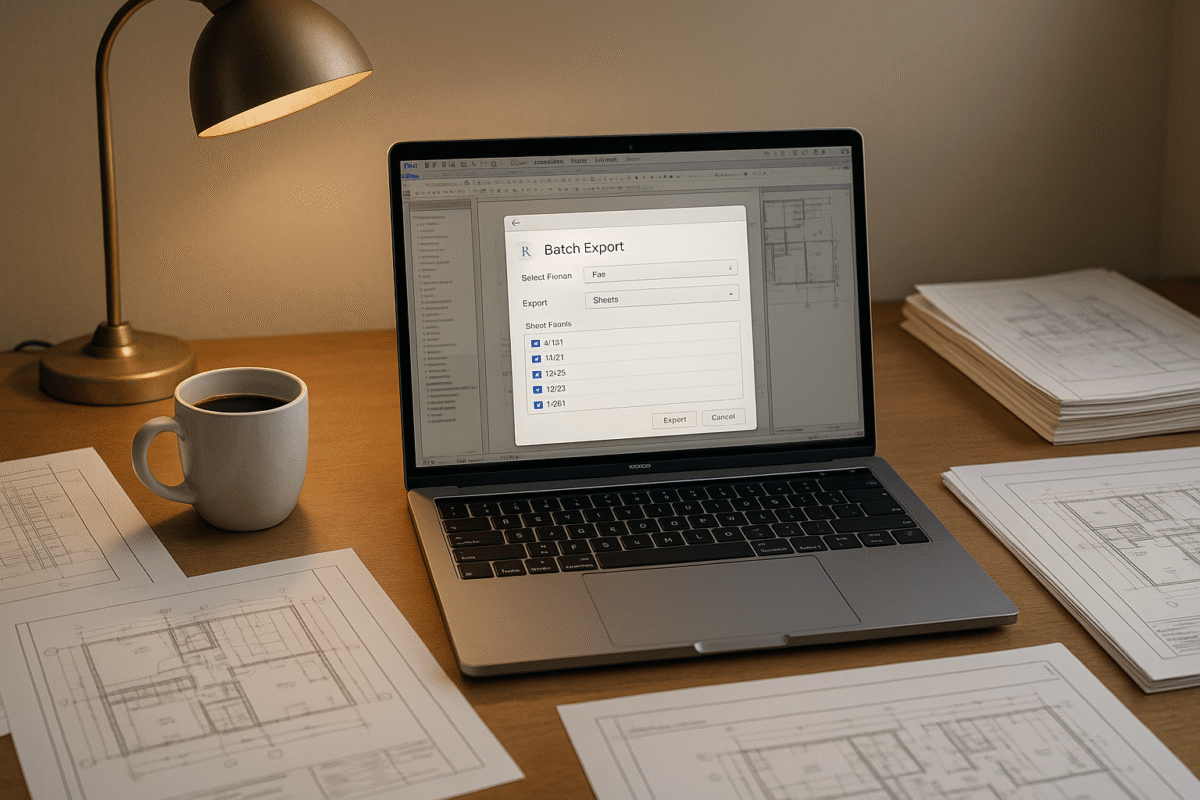
You’ve been there: staring at a screen, mind-numbingly renaming hundreds of Revit views for a deadline, and knowing there has to be a better way. Maybe you spent an entire afternoon creating 50 sheets one by one, a task so repetitive you felt your brain turning to mush. For any architect, designer, or BIM coordinator, this isn't just an annoyance—it's a direct hit to your project margins and predictability.
The good news? The solution is already installed on your computer, and it doesn't require a computer science degree.
If you’ve heard of Dynamo but assumed it was "for programmers," this guide is for you. This is a practical introduction, built for the intimidated and the curious. We won't cover abstract programming theory. Instead, we'll prove Dynamo’s value with real examples that save hours of manual work, helping you build confidence to automate your first repetitive Revit task this week.

This guide is for design professionals in the trenches:
- Architects & Interior Designers buried under documentation changes and complex schedules.
- BIM Coordinators & Managers tasked with model integrity, QA processes, and template discipline.
- Revit Users who have opened Dynamo once, felt overwhelmed, and closed it immediately.
We've taught Dynamo to architects who described themselves as "not technical people." Within a week, they were automating tasks that previously took half a day. Within a month, they were building custom scripts for their specific workflows. The goal is to stop wasting billable hours on manual data entry and start automating the repetitive stuff to improve operational consistency.
What Is Dynamo, Really?
Think of Dynamo for Revit as a secret weapon that comes free with your Revit installation. It’s a visual programming tool built to tackle the repetitive, data-heavy tasks that make Revit feel clunky. The best part? You don't write code.
Instead, you build automations visually, almost like building with digital LEGO blocks. You connect pre-made blocks (called "nodes") to create a workflow. This visual approach lets you see the logic right on your screen, making it far more accessible for non-programmers than traditional, text-based coding.
Analogy: Using Dynamo is like building with LEGO blocks, not writing code. Each block has a specific function. You just connect them in the right order to build something amazing.
Dynamo isn’t separate software you have to buy or install. It's a powerful, free extension of Revit that lets you build automations for your firm's specific production needs. It excels at tasks like batch renaming, data management, and complex parameter updates, but it can't create new Revit families from scratch or replace core Revit modeling tools. It automates what Revit can already do.
Why Non-Programmers Can Absolutely Use Dynamo
The idea that you need a programming background to use Dynamo is the single biggest myth holding design professionals back. It was built for people like you.
Here’s why it’s genuinely accessible:
- Visual Interface: You connect nodes with wires, you don't type commands. If you can create a diagram, you can create a Dynamo script.
- Pre-Built Nodes: The complex work is already done. Nodes like "All Elements of Category" or "Element.SetParameterByName" handle the hard parts for you.
- Visible Logic: Data flows from left to right. You can literally watch your information move through the script and see the results at each step.
- Powerful Packages: A massive community shares "packages"—free collections of nodes that add even more functionality, often for specific AEC tasks.
- Shared Scripts: Thousands of scripts are available for free online. You can download a script that solves your exact problem and run it immediately using the Dynamo Player.
The learning curve is manageable when you start with a practical approach. You don't need to understand every node to save hours of work.

Core Concepts You Need (And Nothing More)
Forget the intimidating jargon. To start automating Revit tasks, you only need to grasp four simple concepts.
Nodes: The Building Blocks
Nodes are the heart of Dynamo. Each one is a pre-packaged command that performs a single, specific job. You just pick the ones you need.
- Input Nodes: These get information. Examples: "Categories" (to select all doors), "File Path" (to find an Excel file), or "Select Model Element" (to pick something in Revit).
- Process Nodes: These do something with the information. Examples: "List.Sort" (to organize a list), "String.Concat" (to join text together), or "Point.ByCoordinates."
- Output Nodes: These make changes in Revit. Examples: "Element.SetParameterByName" (to write a value to a parameter) or "Sheet.ByNameNumberTitleBlock" (to create new sheets).
Wires: Connecting the Dots
Wires are the lines you draw between nodes. They control the flow of data, which always moves from left to right. A wire connects an output "port" on one node to an input "port" on another, creating a logical sequence.
Lists: Just Groups of Things
Dynamo loves working with groups of items. A "list" is simply a collection of things—all the views in your project, all the rooms on a floor, or all the doors of a certain type. Don't panic about lists. A special node called "Watch" lets you peek inside a list at any point, so you can see exactly what data you're working with.
The Player: Making Scripts for Everyone
The Dynamo Player is a simplified interface that lets anyone on your team run a script without opening the full Dynamo environment. This is a game-changer for production maturity. You can build a script to enforce a naming convention, and your entire team can run it with one click. It’s how you scale automation and create reliable delivery pods.
Getting Started: Opening Dynamo
Ready to try? You can find Dynamo in Revit on the Manage tab.
- Go to the Manage tab in Revit.
- Look for the "Visual Programming" panel.
- Click the Dynamo icon.
The interface might look a bit intimidating at first, but it's simpler than it appears. The main areas are:
- Node Library (Left): This is where you find all your nodes, organized by category.
- Canvas (Center): This is your workspace where you place nodes and connect them with wires.
- Preview (Background): A 3D preview that shows any geometry your script creates.
Your first step? Just try placing one node. Search for "Categories" in the library, click it, and then click on your canvas. That's it. You've placed your first node. Running your first script is as simple as finding a pre-built one and hitting "Run" in the Dynamo Player.

8 Practical Scripts That Save Hours
Theory is one thing; immediate time savings are another. Here are eight practical Dynamo scripts that solve real-world problems for non-programmers. Each one targets a task that currently wastes hours and offers a clear return on the small investment of learning basic Dynamo.
Practical Script #1: Batch Rename Views
- The Problem: Your project has 200 floor plans, and they all need a consistent prefix and sequential numbering for a permit submission.
- Manual Approach: Hours of mind-numbing clicking, renaming, and typing, with a high risk of typos.
- Dynamo Approach: A script gets all views, defines a naming pattern, and applies it instantly.
- Time Saved: 2+ hours → 2 minutes.
- Complexity: Beginner.
- Key Nodes: All Views,
Stringoperations,Element.SetParameterByName.
Practical Script #2: Create Sheets from Excel
- The Problem: You need to create 50 new sheets for a drawing set, each with a specific number, name, and title block from a sheet index spreadsheet.
- Manual Approach: Create each sheet, set its parameters, and repeat 50 times. A perfect recipe for errors and wasted time.
- Dynamo Approach: A script reads your prepared Excel list and creates all 50 sheets automatically.
- Time Saved: 1-2 hours → 30 seconds.
- Complexity: Beginner to Intermediate.
- Key Nodes:
Excel.ReadFromFile,Sheet.ByNameNumberTitleBlock.
Practical Script #3: Export Room Data to Excel
- The Problem: You need a clean spreadsheet of all rooms with their names, numbers, and areas for analysis or reporting.
- Manual Approach: Create a Revit schedule, export it, then spend time cleaning up the formatting in Excel.
- Dynamo Approach: A script selects all rooms, gets the specific parameters you need, and writes them directly to a clean Excel file.
- Time Saved: Eliminates a repetitive 15-minute task.
- Complexity: Beginner.
- Key Nodes: All Rooms,
Element.GetParameterValueByName,Excel.WriteToFile.
Practical Script #4: Place Families at Coordinates
- The Problem: A consultant has provided an Excel file with X, Y, Z coordinates for 100 light fixtures.
- Manual Approach: Place each family, then manually type in its coordinates. Tedious and error-prone.
- Dynamo Approach: A script reads the coordinates from Excel and places an instance of the family at each point automatically.
- Time Saved: Hours of manual placement → minutes of processing.
- Complexity: Intermediate.
- Key Nodes:
Excel.ReadFromFile,Point.ByCoordinates,FamilyInstance.ByPoint.
Practical Script #5: Copy Parameters Between Elements
- The Problem: You need to copy the "Mark" value to the "Comments" parameter for 500 doors to accommodate a schedule requirement.
- Manual Approach: Click a door, copy the Mark value, paste it into Comments. Repeat 499 more times.
- Dynamo Approach: The script gets all doors, reads the source parameter ("Mark"), and writes that value to the target parameter ("Comments") for all of them at once.
- Time Saved: Hours of soul-crushing work eliminated.
- Complexity: Beginner.
- Key Nodes: All Elements of Category,
Element.GetParameterValueByName,Element.SetParameterByName.
Practical Script #6: Set Workset by Category or Parameter
- The Problem: During a model cleanup, you find that hundreds of furniture elements were placed on the wrong workset, compromising model performance.
- Manual Approach: Manually select groups of elements and change their workset, hoping you don't miss any.
- Dynamo Approach: A script finds all elements of a certain category (or with a certain parameter value) and moves them to the correct workset automatically.
- Time Saved: QA and model cleanup in minutes, not hours.
- Complexity: Intermediate.
- Key Nodes: All Elements, Filter nodes,
Element.SetWorkset(from a package).
Practical Script #7: Renumber Elements Sequentially
- The Problem: You need to renumber all the doors, rooms, or parking spaces in a project sequentially, but manual numbering is slow and leads to gaps or duplicates.
- Manual Approach: Click-and-type numbering, often requiring a spreadsheet to track and avoid errors.
- Dynamo Approach: A script selects the elements in order, defines a starting number and pattern, and applies error-free sequential numbering in seconds.
- Time Saved: Guarantees accurate numbering and prevents RFIs.
- Complexity: Beginner to Intermediate.
- Key Nodes: Select Model Elements,
List.Sort, Number sequence,Element.SetParameterByName.
Practical Script #8: Audit and Report Model Issues
- The Problem: You need to run a QA check to find all doors without a fire rating, walls with no level assigned, or elements with missing key information.
- Manual Approach: Visual inspection or creating complex schedules with filters, which is unreliable.
- Dynamo Approach: A script acts as an auditor, defining the criteria for "correct" and generating a report of all elements that fail the check.
- Time Saved: Automates the QA process for predictable quality.
- Complexity: Intermediate.
- Key Nodes: All Elements,
Element.GetParameterValueByName, Filter nodes, List operations.
Essential Packages for Non-Programmers
Packages are free add-ons that give you more nodes, extending what Dynamo can do. Think of them as expansion packs for your toolkit. You can install them directly within Dynamo by navigating to Packages > Search for a Package.
For architects and designers, these are must-haves:
- Clockwork: A massive utility belt of nodes that simplifies list management and complex parameter operations. It's often the first package people install.
- archi-lab: Created by an architect, this package is packed with nodes for everyday architectural and BIM management tasks, including worksets, views, and sheets.
- BimorphNodes: Exceptionally useful for geometry and data interoperability, especially when working with linked CAD files or complex coordinates.
- Springs: Another powerful collection of practical utility nodes that will save you time and effort on a wide range of tasks.
Finding and Using Pre-Built Scripts
You don't have to reinvent the wheel. A huge community of users shares scripts for free. Using scripts others have created is the fastest way to get started and a fantastic way to learn.
Where to Find Scripts:
- The Dynamo Forum is the single best resource. You can ask questions, find solutions, and download scripts.
- DynamoBIM.org offers guides, samples, and links to other valuable resources.
- GitHub hosts thousands of scripts. A search for "Dynamo Revit scripts" will yield a treasure trove.
- Your company's internal library: Many firms build their own libraries of scripts to enforce standards.
Before running a downloaded script on a live project, always open it to understand what it does. You can often make small tweaks to adapt it to your specific needs, like changing a parameter name. This is a great way to start building your own custom script library.
Common Beginner Mistakes (And How to Avoid Them)
Every Dynamo expert started as a beginner, and every beginner makes mistakes. Knowing the common traps ahead of time will save you hours of frustration.
- Mistake #1: Trying to build complex scripts first.
- Solution: Start with single-task automation. Make a script that does one small thing perfectly. Small wins build confidence.
- Mistake #2: Not understanding list structure.
- Solution: Use Watch nodes everywhere! The Watch node lets you see the data inside a list. It's the best tool for understanding why your script is or isn't working.
- Mistake #3: Running scripts without previewing.
- Solution: Always use the "Run (Automatic)" mode on a small sample of data or in a test project. See what the script will do before you commit the changes.
- Mistake #4: Overcomplicating solutions.
- Solution: The best scripts are often the simplest. If your graph is becoming a tangled mess, ask if it could be two smaller, more focused scripts instead.
- Mistake #5: Not saving working scripts.
- Solution: The moment a script works, save it! Give it a clear name and add it to your personal library. You'll thank yourself later.
- Mistake #6: Ignoring error messages.
- Solution: The yellow warning messages on nodes usually tell you exactly what the problem is. Read them. They are your guide.
Your First Week with Dynamo: Recommended Path
Feeling motivated but not sure where to start? Follow this simple plan to go from intimidated to confident in just one week.
- Day 1-2: Explore and Run. Open Dynamo. Click around the interface. Don't build anything. Find a pre-built script (like a view renamer) and run it using the Dynamo Player. See the magic happen.
- Day 3-4: Modify. Open that pre-built script in Dynamo. Don't try to understand everything. Just make one small change—like changing a prefix from "A-" to "ARCH-". This proves you can customize scripts for your needs.
- Day 5-7: Build. Build your very first script from scratch. A perfect starter project is a script that gets all rooms and exports their names and numbers to Excel. The goal is a working script, not a perfect one.
By the end of the week, you'll have proven to yourself that you can automate Revit. From there, you can tackle one repetitive task from your daily workflow and start building a library of time-saving tools. Dive deeper into Revit productivity techniques as your confidence grows.
When to Use Dynamo (and When Not To)
Dynamo is powerful, but it’s not the solution for everything. Knowing when it's worth the effort is key.
Dynamo is worth the effort for:
- Repetitive tasks you do on every project.
- Tasks involving hundreds or thousands of elements.
- Data exchange between Revit and Excel.
- Enforcing consistency and template discipline across teams.
- Complex parameter management and model auditing (QA).
Dynamo is overkill for:
- One-time tasks on just a few elements.
- Simple operations that are faster to do manually in Revit.
- Tasks where the time to build the script exceeds the time it saves.
The Confidence Factor
Here's the most important takeaway: you don't need to understand everything to be effective with Dynamo. The goal is a working script that saves you time, not an elegant piece of code. Every Dynamo expert started exactly where you are—as a beginner. Give yourself permission to learn incrementally. Small wins build momentum.
The answer isn't avoiding Dynamo because it looks complicated. It's starting with simple, practical scripts that prove its value immediately and building confidence from there. You can absolutely do this.
At BIM Heroes, we believe mastering production is the foundation of a successful firm. It's not about selling hours; it's about delivering clarity, systems, and reliable outcomes. Automating repetitive work protects your margins and frees your team to focus on what they do best: design.
Ready to build more predictable and profitable workflows? Download our Non-Programmer's Dynamo Quick Reference Guide to get a curated list of essential nodes and starter script ideas.