It’s the start of a new project, and you can already feel the familiar dread creeping in. Someone on the team is spending the morning manually creating 60 sheets in Revit, one by one—title block, sheet number, sheet name, repeat. Or it’s a project rename, and 180 views need to be updated individually. Or room data needs to go into a client's Excel template, and someone is copying values by hand. These aren't complex design problems. They're repetitive ones. And repetitive problems in Revit have a solution that most firms know exists but have never actually used: Dynamo.
The biggest reason firms leave this tool on the table is the assumption that it requires coding. But here’s the reframe: Dynamo isn't just a tool for programmers or computational designers. It's a production automation tool that any Revit user can benefit from—either by building simple scripts or, more importantly, by running pre-built ones with a single click. This guide explains what Dynamo for Revit actually does for production teams, who uses it, and the realistic path to getting started without needing to become a coder.
What Dynamo for Revit Actually Is

Let's skip the marketing language. Dynamo is a visual programming environment built into Revit that lets you automate tasks by connecting logic blocks called nodes instead of writing code. Each node does one simple thing—select all rooms, get a parameter value, write to Excel—and you connect them in sequence to build a workflow, called a graph. When you run the graph, Revit executes every step automatically, completing in seconds what would take a person hours of manual clicking.
The key distinction is this: Dynamo isn't a separate software purchase. It’s included with Revit (since version 2020) and is accessible from the Manage tab. Teams that aren't using it aren't missing a tool; they're missing the knowledge that the tool is already there, waiting to solve their most tedious production bottlenecks.
The analogy is simple. If Revit is your digital building model, Dynamo is the ability to give that model precise instructions. Instead of clicking through menus to update 200 door parameters, you tell Dynamo the rule—"set all exterior doors to fire rating X"—and it applies it across the entire model in seconds. This isn't just about fancy geometry; it's about gaining control over your model's data and protecting your margins.
The Two Ways Firms Use Dynamo — And the One Nobody Talks About
Most content about Dynamo for Revit focuses on one flashy use case: building complex parametric geometry and computational facades. This is a real but niche application, typically practiced by computational designers at large, well-resourced architecture firms. It’s impressive, but it's not what most production teams need to improve their day-to-day BIM workflows.
The use case nobody talks about clearly enough is production automation—using Dynamo to eliminate the repetitive, time-consuming, zero-creative-value tasks that plague every AEC firm on every project. This is where the real ROI is for small-to-mid-sized firms looking for predictable delivery and operational consistency.
To get there, you need to understand the two modes of using Dynamo:
- Building Mode: A BIM manager, senior technician, or external production partner builds a Dynamo graph once. This requires understanding nodes, data flow, and some logic. It's a one-time investment to create a powerful, reusable tool.
- Running Mode: Everyone else on the production team runs that graph using Dynamo Player with a single click and a simple input form. No graph knowledge is required. No complex Dynamo interface is visible. They just see a button that says "Create Sheets from Excel" and click "Run."
The lesson learned in the field is this: most people on a production team will only ever need Running Mode. The "we don't have time to learn coding" argument completely collapses once this distinction is made clear. It's the key to unlocking scalable delivery.
What Dynamo Actually Automates — Real Tasks, Real Time Savings
This is where the theory meets the production floor. Let's walk through the high-value production tasks that Dynamo automates, replacing hours of manual work with a few clicks. This is how you protect margins and prevent RFIs.
Sheet Creation and Setup
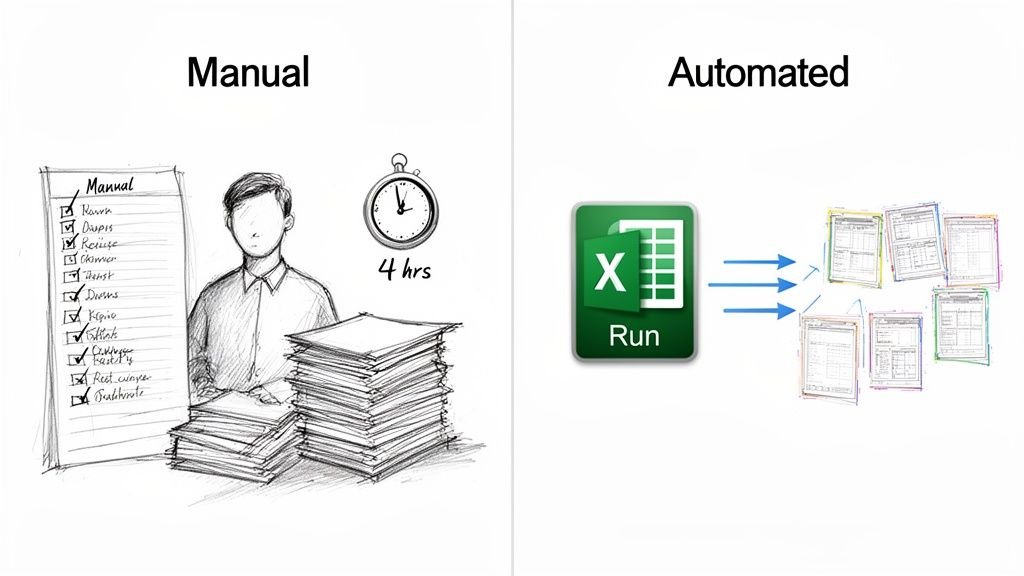
Manually creating a 60-sheet drawing set means clicking through the same dialogs for hours—choosing the title block, entering the sheet number, typing the sheet name, and placing initial views. With a Dynamo script reading from a simple Excel schedule, all 60 sheets are created, numbered, named, and populated in under a minute. The Excel file becomes the single source of truth for your construction documentation, ensuring consistency from the start.
View Renaming and Management
A project number changes or a discipline prefix needs an update. Suddenly, someone is tasked with renaming 300 views by hand. This is hours of tedious work that almost guarantees inconsistencies. A Dynamo for Revit script applies a naming rule across every view in the model simultaneously. The result is instant, consistent, and repeatable—a perfect example of scalable template discipline.
Parameter Updates at Scale
Setting a parameter value across hundreds or thousands of elements—like fire ratings on doors, material assignments on walls, or cost codes on equipment—is a minefield for transcription errors when done manually. Dynamo reads a rule or an Excel list and applies the correct value to every matching element in the model without exception. This ensures data integrity and prevents the small mistakes that lead to big problems during permitting or construction.
Room and Space Data Export
Extracting room names, numbers, areas, and other data from a Revit model into a client’s Excel template is a classic copy-paste nightmare. A Dynamo script exports the entire room dataset to a perfectly formatted Excel file in seconds, with headers and filters already applied. This turns a dreaded data transfer task into a simple decision checkpoint.
Model QA Checks
Before issuing a drawing set, a thorough QA process is critical. Does every room have a name? Does every door have a fire rating? Is there a view on every sheet? Done manually, this takes hours and still misses things. A Dynamo audit script flags every non-compliant element in the model and exports a report, turning your QA check from a morning-long chore into a five-minute review.
The takeaway? None of these tasks require coding knowledge to run. They require a team that has built the scripts once—or a production partner who already has them ready to go.
Dynamo Player — How the Whole Team Benefits Without Touching the Graph
The piece that makes firm-wide Dynamo Revit automation realistic is Dynamo Player. This is a simplified interface, built directly into Revit, that allows any team member to run a pre-built Dynamo script with a single button click. They can do this without ever seeing the graph, understanding nodes, or having any automation knowledge at all.
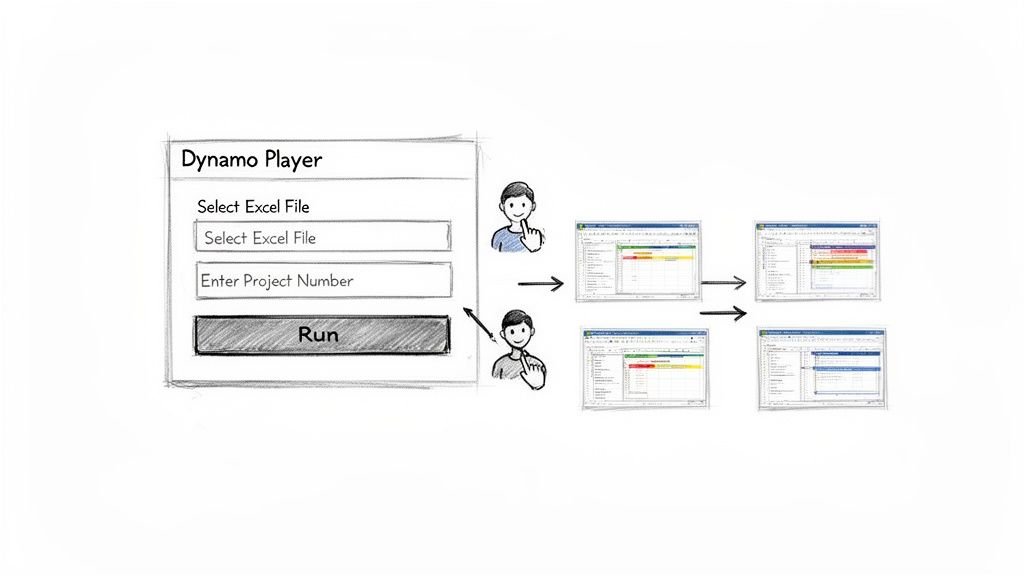
Here’s how it works in a mature production workflow: the BIM manager builds and validates a script, then publishes it to a shared folder. Team members access it through the Dynamo Player palette inside Revit. They see a clean input form—"Select your Excel file" or "Enter the new project number"—and click Run. The script executes, and the result appears in Revit. That's the entire interaction.
The firm-wide implication is profound. Once a script exists in Dynamo Player, it becomes a standard tool anyone can use, enforcing template discipline and operational consistency. Sheet creation becomes a firm standard. View renaming becomes a firm standard. Model audits become a firm standard. The BIM manager builds the system once; the whole team benefits on every project from that point forward. This is the model that distinguishes firms getting real value from Dynamo BIM from those that don't.
Who Should Be Building Dynamo Scripts — And Who Should Just Be Running Them
Let's be honest about the learning curve. Building Dynamo graphs from scratch does require a time investment. It means understanding how data flows between nodes, how to manage lists of data, and how to connect logic operations to Revit elements. For most production team members juggling project deadlines, this is not a realistic expectation.
In a firm that uses Dynamo well, there's a clear division of labor:
- Script Builders: One or two people per firm. This is typically the BIM manager, a senior Revit power user, or an external production partner. They invest the time to build and maintain the firm's graph library. They understand nodes, packages, and the Revit API well enough to create reliable, robust scripts that don't break.
- Script Runners: The rest of the production team. They use Dynamo Player to run the scripts that the builders have prepared. They don't need to know how the graph works, any more than they need to know how Revit's database works to use Revit.
The implication for firms that don't have an internal script builder is clear: this is exactly what a mature BIM production partner provides. A partner like BIM Heroes brings a pre-built Dynamo toolkit to your projects—scripts already tested, packaged for Dynamo Player, and adapted for US production standards—so your firm gets the automation benefits without the steep investment in building that capability from scratch.
Where Dynamo Fits in a BIM Production Workflow
So how does Dynamo fit alongside the rest of your Revit workflow without replacing it? It's not a replacement for core modeling skills. Dynamo doesn't design buildings, draw details, or coordinate disciplines. What it does is eliminate the administrative and repetitive layer that sits on top of that high-value work—the setup, the data management, the parameter maintenance, and the documentation organization.
Think of it this way: Revit handles the model. Dynamo handles the model's data and administrative structure. Together, they create a production workflow that is both accurate and efficient. The model contains the right information, and that information is organized, up-to-date, and exportable without hours of manual effort. This approach delivers the predictability and consistency that clients and permitting agencies demand.
For firms at different stages of production maturity, the entry point is different. A firm just starting with Dynamo gets the most immediate value from production automation scripts for sheets, views, and parameters. A firm further along the path starts using Dynamo for advanced model QA, data exchange with consultants, and validating complex systems in their MEP design services. The ceiling is high, but the floor—where the immediate, practical value lives—is very accessible.
Your Path to Production Maturity Starts Here
Those hours your team spends creating sheets, renaming views, and copying room data into Excel are not an unavoidable cost of BIM production. They're a solved problem—solved by a tool that's already installed in every copy of Revit since 2020 and is waiting to be used.
The value of Dynamo for Revit isn't theoretical. It shows up in recovered hours on every project, in model standards that don't slip under deadline pressure, and in QA checks that actually happen before you issue drawings, preventing RFIs. This is the foundation of a mature, scalable delivery model.
For firms that want the automation benefits without the investment in building a script library from scratch, BIM Heroes brings Dynamo capability as part of its production service. We provide the scripts already built, tested, and integrated into a reliable delivery workflow, letting your team focus on what they do best. Our BIM modeling services are designed to deliver not just models, but systems that drive clarity and consistency.