That spinning blue circle next to "Synchronize with Central" is more than just an annoyance—it's a direct threat to your project's bottom line. When Revit worksharing breaks down, it’s rarely a software glitch. It's a symptom of deeper issues in your production workflow that lead to lost hours, broken elements, and blown deadlines.
Why Revit Worksharing Conflicts Are Costing Your Firm
That dreaded "Cannot Synchronize" error is the sound of your project budget deflating. One team member discovers hours of their work have been overwritten. Another realizes a critical gridline was moved, creating a cascade of misalignments that will burn half a day to fix.
These aren't just technical hiccups. They are real, tangible blows to project predictability and margin protection.
These sync battles are the direct result of undisciplined workflows. When production teams operate without clear rules of engagement—bad workset discipline, outdated local files, unclear ownership—chaos is the predictable outcome. The problem isn't the technology; it’s the lack of a mature, systematic approach to using it.
The Real-World Costs of Sync Battles
The financial hit from poor Revit worksharing goes far beyond a few wasted hours. Each conflict introduces risk and quietly chips away at your margins in several ways:
- Lost Productivity: Every minute spent troubleshooting a sync error or redoing lost work is a minute not spent advancing the project. This hits your budget and your timeline, hard.
- Increased RFIs: When model elements are constantly shifting or incorrect, it creates confusion downstream. This leads to a higher volume of Requests for Information (RFIs) from contractors, which means delays on site.
- Compromised Quality Assurance: Constant sync issues make it nearly impossible to maintain a reliable "single source of truth." This complicates your QA process and raises the odds of errors making it into the final construction documents.
- Reduced Team Morale: Nothing kills momentum like seeing your hard work vanish. Persistent sync battles create a frustrating environment that leads to burnout and disengagement.
The core issue is reframing the problem. It’s not about fixing a Revit error; it's about establishing the operational consistency needed for predictable delivery. Your firm doesn’t just sell hours—it sells clarity and reliable systems.
Moving from Chaos to Control
To stop the endless sync battles, you have to move beyond temporary fixes and implement a disciplined workflow. This means establishing clear protocols for how your team interacts with the central model, from daily startups to end-of-day shutdowns. According to research from Autodesk, consistent practices are vital for model performance, especially in complex projects.
By focusing on production maturity—enforcing template discipline, clarifying element ownership, and creating decision checkpoints—you can transform Revit worksharing from a source of conflict into a powerful tool for collaboration.
The following sections will provide field-tested solutions to help you build that system, protect your margins, and deliver projects with confidence.
Getting to Grips with Revit Worksharing
If you've ever dealt with a sync conflict in Revit, you know the frustration. To avoid those battles, you first need to get your head around what’s happening behind the scenes. The Revit worksharing framework isn’t overly complicated, but you have to play by its rules. Nearly every sync error, lost chunk of work, or broken model can be traced back to a misunderstanding of its core parts.
Think of it like an old-school drafting room. There's a master blueprint on the main table—the one official, undisputed record of the project. No one is allowed to draw directly on this master copy. Period.
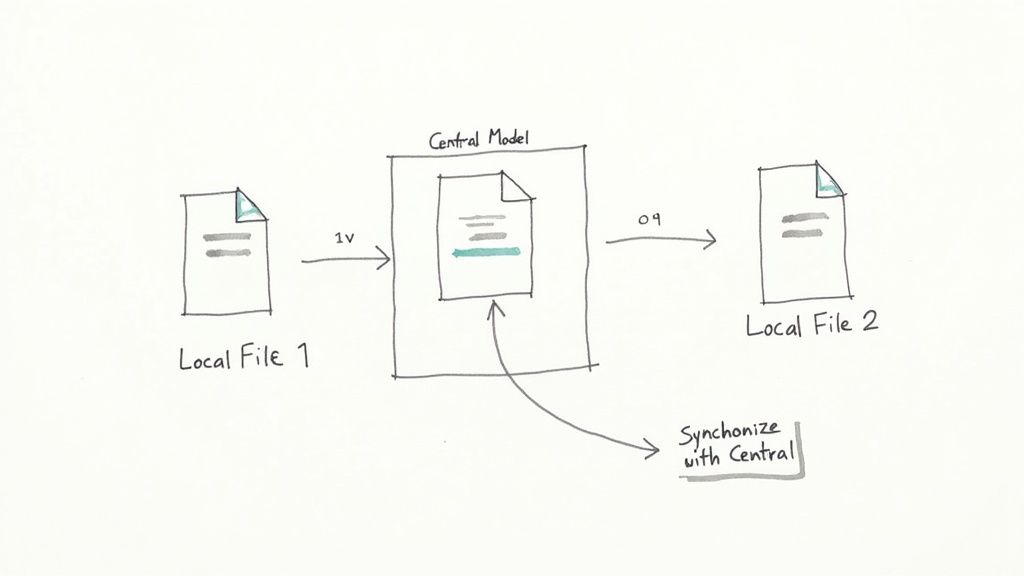
The entire system is built on three pillars: the Central Model, Local Files, and Worksets. Understanding how these three interact is the first step toward a mature production workflow and protecting your project's bottom line.
The Central Model: Your Single Source of Truth
The Central Model is that master blueprint. It’s the authoritative, master copy of the entire project, holding every piece of building information, from the geometry down to the data. It lives on a shared network server or in the cloud on a platform like Autodesk Construction Cloud.
Your team needs to treat this file as sacred. No one—and I mean no one—ever works directly in the Central Model. Doing so is the fastest way to corrupt the entire project, a catastrophic mistake that can cost days of recovery time. Its only job is to receive and consolidate updates from the team.
Local Files: Your Personal Sandbox
When a team member is ready to work, they create a Local File on their own computer. This is like taking a personal copy of the master blueprint back to their desk. It's a safe sandbox where they can make all the changes they want without immediately messing with anyone else's work.
This local copy is a complete snapshot of the Central Model from the exact moment it was created. This is why starting each day by creating a new local file is a non-negotiable step in any disciplined BIM workflow. Working from a stale, days-old local file is a guaranteed recipe for sync conflicts.
Every sync battle is fundamentally a communication breakdown between a Local File and the Central Model. The software is just enforcing the rules of a system that a user has accidentally broken.
Worksets: The Rules of Engagement
So if the Central Model is the blueprint and Local Files are the copies, then Worksets are the designated zones of ownership. They are just logical bundles of project elements—like "Core & Shell," "Interior Partitions," or "Structural Grids"—that manage who has permission to edit what.
When you need to edit an element, Revit checks it out to you, giving you exclusive permission. This is what stops two people from trying to modify the same wall at the exact same time. It’s the heart of the whole system. Poor workset discipline, like a user hoarding an entire workset instead of just borrowing the elements they need, is a major source of team bottlenecks and frustration.
The process of sending your changes from your local file back to the master blueprint is called Synchronize with Central (SWC). During a sync, three things happen in sequence:
- You Save: Your changes are saved to your local file first.
- You Send: Your changes are then sent up to the Central Model.
- You Receive: Any changes made by others since your last sync are downloaded to your local file.
That last step is critical. Syncing frequently—think every 30 to 60 minutes—ensures your local copy never gets too out of date, which dramatically reduces the chances of a sync battle. It’s the operational pulse that keeps the entire team aligned and your project delivery on track.
The Five Root Causes of Revit Sync Battles
Sync errors aren't random acts of software rebellion. They're the predictable outcome of bad habits creeping into a team's workflow. When a Revit worksharing environment turns into a battlefield of lost work and constant error messages, you can almost always trace it back to one of five common procedural failures. These aren't just technical mistakes—they're direct threats to your production maturity, predictability, and ultimately, your project margins.
Getting to the bottom of these issues is the first step toward building a conflict-free system. Each one represents a breakdown in communication or discipline that creates friction between team members and the central model. By diagnosing these problems, you can shift from reactive troubleshooting to proactive prevention and establish the consistency you need for reliable delivery.
1. Flawed Workset Discipline
Poor workset discipline is, without a doubt, the most common cause of production bottlenecks. This is what happens when users check out entire worksets—like "Interior Walls" or "Core & Shell"—instead of borrowing only the specific elements they need. It’s the digital equivalent of a drafter taking the entire stack of structural drawings hostage just to edit a single column detail.
When someone owns a whole workset, nobody else can touch any element assigned to it. This paralyzes other team members, forcing them to sit around and wait, absolutely killing productivity. It's a workflow rooted in a deep misunderstanding of how worksharing is actually designed to function.
Field Lesson: Worksets are for organizing elements and controlling visibility, not for permanent ownership. The right way to work is to borrow elements on-demand and relinquish them the moment you’re done. Hoarding worksets is a recipe for team-wide frustration and delays.
2. Working from Stale Local Files
A local file is nothing more than a snapshot in time. When a user works from the same local file for days on end, they are basing their decisions on outdated information. The longer they go without syncing, the more their local copy drifts from the reality of the central model, making a sync conflict almost inevitable.
This usually happens when team members forget the cardinal rule: create a new local file every single morning. They just open yesterday's file and keep chugging along, completely unaware that dozens—or even hundreds—of changes have been made by others. When they finally try to sync, Revit has to sort out a massive pile of conflicting edits, often leading to errors or someone's hard work getting overwritten. It's a critical breakdown in basic QA.
3. Uncoordinated Overlapping Edits
This one is a bit more subtle, but just as destructive. It happens when two people edit different elements that are logically connected. For instance, an architect might be adjusting an interior partition while, at the exact same time, a mechanical engineer moves a duct that is hosted by that very same wall. Neither user "owns" the other's element, but their changes are in direct conflict.
When they both sync, Revit is forced to pick a winner, and one person’s work is often undone without any warning. This is a classic symptom of poor team coordination and a lack of clear ownership, and it almost always leads to RFIs when the clash is discovered down the line. Without a clear system, you're just relying on luck to prevent these digital collisions.
4. Mismanaged Linked Models
Linked files—whether from structural, MEP, or other disciplines—are a massive source of instability if they aren't managed with extreme discipline. When links are loaded directly from a local server instead of a controlled cloud environment, or when team members have different versions of a link, it creates chaos across the project team. A structural user might be working with an old architectural link, leading them to move a column that no longer aligns with the updated grid.
This creates cascading errors that are a nightmare to diagnose. The key is to establish a single source of truth for all linked files, typically through a cloud platform like Autodesk Construction Cloud, and enforce a strict protocol for updating them. This simple step prevents the "my model looked fine" argument and ensures everyone is building from the same foundation.
5. Ambiguous Element Ownership
The final root cause is a simple lack of clarity. Who is responsible for the gridlines? Who manages the shared levels? When ownership isn't clearly defined in the BIM Execution Plan, you get two outcomes: team members either duplicate efforts or, even worse, make conflicting changes to fundamental project elements.
This ambiguity often rears its ugly head during permitting prep when inconsistencies between disciplines are finally flagged. The fix is to establish clear "model ownership" protocols in your project templates and kickoff documentation. This isn't about micro-managing; it’s about creating a predictable system that prevents the most basic and damaging errors before they ever happen, ensuring a smoother path to final delivery.
Worksharing conflicts can feel like an unavoidable part of working in Revit, but most are preventable with the right procedures. Here is a quick summary of the common conflict sources and how to get ahead of them.
Common Conflict Sources and Prevention Tactics
| Conflict Source | Primary Cause | Prevention Tactic |
|---|---|---|
| Workset Hoarding | User checks out an entire workset instead of borrowing specific elements. | Enforce a "borrow, don't own" policy. Train the team to only borrow what they need and sync immediately after editing. |
| Stale Local Files | User works on the same local file for multiple days without syncing. | Mandate the creation of a new local file every morning. Implement a "Sync-to-Central" at least twice daily. |
| Overlapping Edits | Two users unknowingly edit interconnected elements simultaneously. | Improve team communication with daily stand-ups. Use worksharing display modes to see who is working on adjacent elements. |
| Inconsistent Links | Team members are using different versions of a linked model. | Centralize all linked files on a cloud platform (ACC/BIM 360). Establish a strict link update protocol. |
| Unclear Ownership | No defined responsibility for shared elements like grids and levels. | Clearly define element ownership in the BIM Execution Plan (BEP) and project templates before work begins. |
By addressing these five areas with disciplined procedures, you can transform your Revit worksharing process from a source of conflict into a system that supports reliable, scalable delivery.
4 Rules for a Conflict-Free Worksharing Protocol
Knowing what causes sync battles is one thing. Building a system to stop them before they start is another entirely. A conflict-free Revit worksharing environment never happens by accident; it’s the result of a disciplined protocol that every team member follows. No exceptions.
This isn't just some technical checklist. It's a production-ready framework for building consistency, protecting your margins, and making sure projects get delivered on time. The following four rules aren't just suggestions—they are the core of any mature BIM production workflow.
1. The Daily Startup Procedure
The single most effective habit for preventing data corruption is how you start your day. Never, ever open yesterday's local file. A local file is just a snapshot in time. Opening an old one means you're instantly out of sync with every single change made since you last closed Revit.
The right way is simple, and it's mandatory:
- Open Revit first.
- Navigate to your cloud project or network server.
- Select the central model, making sure the "Create New Local" box is checked.
- Save this brand new local file to your machine, overwriting whatever was there from the day before.
This simple routine guarantees you're always working from the latest version of the project, which slashes the risk of conflicts caused by stale data.
2. The Sync Cadence
Think of synchronization as the heartbeat of a healthy model. When you don't sync often enough, your local file drifts further and further away from the central model. The longer you wait, the more changes pile up, and the higher the odds of a major collision when you finally do sync.
Set a firm rule: Synchronize with Central (SWC) every 30 to 60 minutes. This keeps the whole team on the same page and stops any single user's file from becoming dangerously outdated. It also makes each sync operation much faster because Revit is only sending a small batch of data each time.
The diagram below shows exactly where things go wrong in a typical sync workflow—from working on stale files to making uncoordinated edits. A strict protocol is designed to prevent these exact failure points.
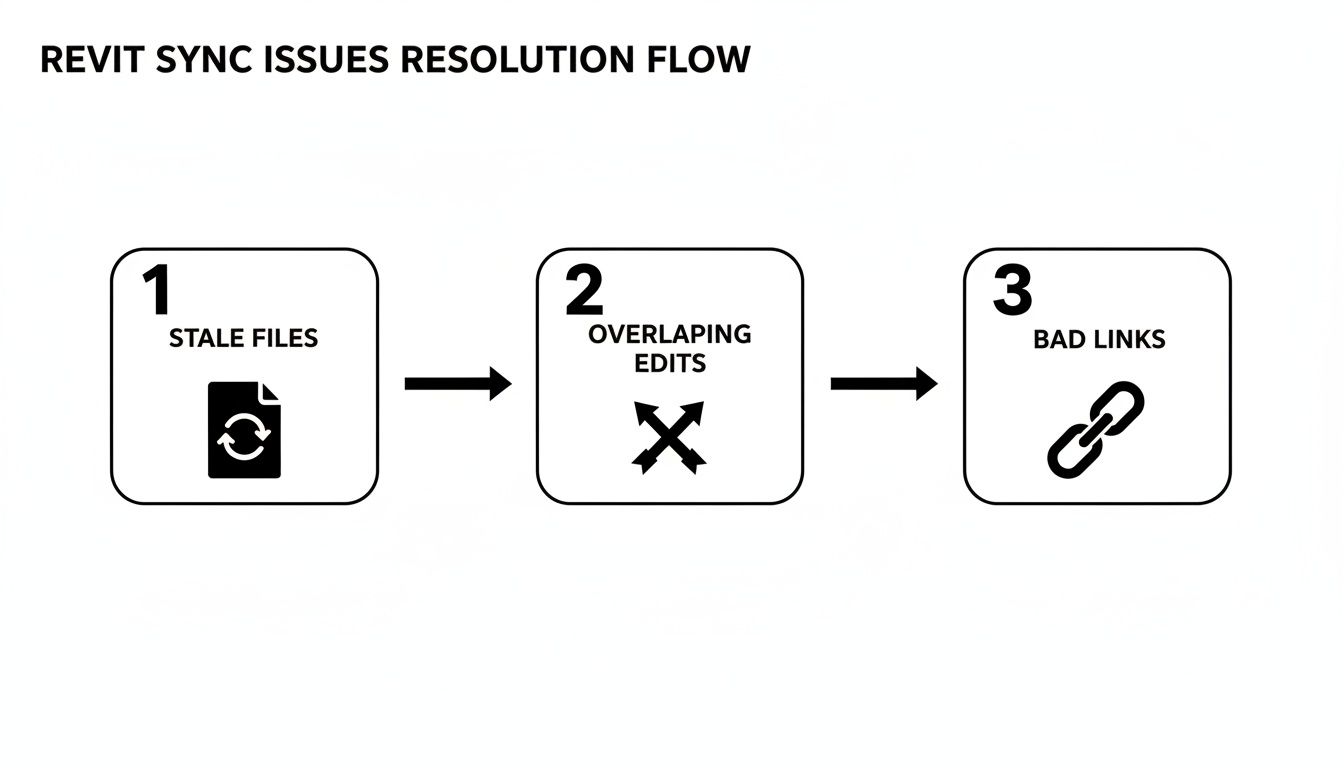
This process flow makes it clear how simple procedural mistakes, like working from an old file or editing the same element as someone else, lead directly to sync failures and lost work.
3. The Borrow, Edit, and Relinquish Rule
Workset discipline is where most teams completely fall apart. The biggest mistake? Hoarding entire worksets instead of just borrowing individual elements. When someone checks out the "Interior Partitions" workset, they lock out every other team member from touching a single interior wall. It's a massive production bottleneck.
The correct etiquette is to borrow, not to own:
- Borrow: Just select the element you need to change. Revit automatically gives you permission.
- Edit: Make your changes.
- Relinquish: Sync with Central right away. This gives ownership of the element back to the model, making it free for others to use.
This approach treats the model like a shared resource, not a collection of private territories. It’s a small shift in mindset that has a huge impact on team efficiency and stops the endless frustration of locked elements.
Building truly conflict-free protocols means integrating effective workflow management principles that cut down on friction between team members. The best place to document these rules is within your company's own standards. If you need a place to start, check out our guide on creating solid BIM standards that can support scalable project delivery.
4. The End-of-Day Shutdown
How you end your day is just as important as how you start it. Never leave your Revit model open overnight. An open session can keep elements locked, prevent server maintenance, and cause sync failures for the whole team the next morning.
This end-of-day shutdown is non-negotiable:
- Do one final Synchronize with Central.
- In the sync dialog box, check "Relinquish All My Worksets and Elements."
- Add a short, clear comment about what you accomplished.
- Once the sync is finished, close the model and shut down Revit.
This simple act of digital hygiene leaves the central model clean, accessible, and ready for the next day. It’s a crucial step that prevents countless headaches. Many firms are finding that this level of process discipline is easier to maintain and scale by working with specialized production teams. In fact, firms outsourcing Revit services tap 24/7 productivity, and the global market is expanding rapidly as cloud tools enhance collaboration, reducing planning time by 20% and boosting transparency.
How Cloud Worksharing Elevates Team Collaboration
The move from on-premise servers to cloud platforms like Autodesk Construction Cloud has completely changed the game for Revit worksharing. Gone are the days of sluggish VPN connections and painful latency issues for remote team members. Those headaches are quickly becoming relics of a less efficient time.
Cloud worksharing isn’t just about storing your central model in a new location; it’s a fundamentally different way to approach project delivery.
By hosting the central model in the cloud, you establish a genuine single source of truth that’s accessible to anyone, anywhere, at any time. This is the backbone of modern, scalable production. Suddenly, your project team can be made up of specialists from different cities—or even different continents—all working together in the same live model. It’s about more than just convenience; it’s about operational consistency and protecting your margins by removing the friction that used to grind distributed teams to a halt.
The Cloud Is an Enabler, Not a Cure
It's easy to fall into the trap of thinking that moving to the cloud will magically fix all your worksharing issues. It won't. The cloud is a powerful enabler of better workflows, but it’s no substitute for good discipline. In fact, the core principles of a healthy worksharing protocol become even more critical in a cloud environment.
A cloud platform gives your team a better racetrack, but it doesn't teach them how to drive. Poor habits like infrequent syncing, sloppy workset discipline, and unclear ownership will cause just as much chaos in the cloud as they do on a local server—sometimes even faster.
The fundamental rules of the road don't change:
- Sync Frequently: A consistent sync cadence is still non-negotiable to keep everyone on the same page.
- Own Your Work: Element ownership must be respected, and worksets relinquished as soon as you're done.
- Manage Your Links: Linked models need to be managed from a central location to prevent version conflicts.
Without these foundational practices, the speed and accessibility of the cloud just become a faster way to create the same old sync battles.
Unlocking True Global Collaboration
When teams get both the technology and the discipline right, the results are incredible. Cloud Revit worksharing has truly transformed collaboration in the AEC industry, especially with platforms like BIM 360 (now part of ACC). Global teams can now edit the same model in real-time without the version conflicts and data corruption that used to cripple large-scale projects.
This opens the door to entirely new delivery models, like 24-hour production cycles where work is handed off between teams in different time zones. It allows firms to build specialized "delivery pods" by bringing together the best talent for a project, no matter where they are physically located.
But to really harness this collaborative power, organizations also need to think about mastering governance in the cloud for secure and scalable IT operations. Proper governance ensures that as your teams expand and projects grow more complex, your cloud environment stays stable, secure, and efficient. It's not just about managing the models; it's about managing the entire ecosystem they live in. For a deeper dive, our guide on BIM 360 permissions best practices offers a production-focused framework for keeping your cloud environment organized and secure.
Advanced Troubleshooting for Common Revit Errors
Even with the best workflows, things still go sideways. A Revit worksharing environment is a complex beast, and sooner or later, you'll hit an error that stops production in its tracks. The key is to react with a clear, systematic approach—not panic. Learning to read the tea leaves in Revit's cryptic error messages is the first step to getting your team back to work.
When an error pops up, your first job is to figure out the blast radius. Is it hitting just one person, or is the whole team down? A single user struggling to sync usually points to a corrupt local file or a flaky network connection on their end. But if multiple people suddenly can’t sync, the problem is almost certainly with the central model.
This is a critical decision point for any production lead. Isolating the problem keeps you from taking drastic measures, like restoring a backup, when a much simpler fix would have done the job.
Decoding Common Error Messages
Revit errors can look intimidating, but most of them point back to a handful of common issues. Knowing how to translate them into actionable steps is crucial for protecting your timeline and preventing lost work.
Here are a few of the usual suspects and what to do when they show up:
- "Can't edit element until user XYZ relinquishes it": This is the most common bottleneck in any collaborative project. It just means someone has an element checked out. Your first move should always be to communicate. If you can't reach the user, a BIM Manager might need to force relinquish as a last resort.
- "Operation cannot be completed": This vague message often signals a deeper issue. It could mean the central model is busy processing other requests, or it might be the first warning sign of corruption. Get everyone to stop syncing and take a look at the central model's health.
- "Data in file [file name] is corrupt": This is the one nobody wants to see. If it’s pointing to a local file, the fix is easy: delete the local file and create a new one. If the error points to the central model, you’ll need a more methodical recovery plan.
Your best defense against data corruption is a disciplined workflow. Most catastrophic failures don't happen suddenly; they are the result of small, unchecked errors and bad habits accumulating over time.
A Systematic Approach to Model Auditing
When performance starts to lag or errors become more frequent, it’s time to audit the model. A systematic audit can uncover the root cause of the problem, whether it's bloated families, an excessive number of warnings, or other hidden issues.
Start by running Revit's "Audit" function when opening the central model. This can fix minor problems automatically before they grow. Next, tackle the project warnings. A model with thousands of unresolved warnings—like overlapping walls or duplicate marks—will inevitably become slow and unstable.
Finally, purge the model of all the junk it has accumulated. Run the Purge Unused command three times in a row. This ensures you clean out nested families and materials that the first pass might miss. For a deeper dive into keeping your models running smoothly, our guide on how to avoid common Revit crashes provides a field-tested checklist.
Regular model maintenance isn't just a "best practice"—it's a core component of predictable, profitable project delivery.
Frequently Asked Questions About Revit Worksharing
Here are a few quick answers to the most common questions our production teams hear about Revit worksharing. These are the field-tested lessons that keep projects running smoothly.
How Often Should My Team Synchronize With Central?
As a firm rule, team members should sync up every 30 to 60 minutes. It's also critical to sync right before taking a long break or at the end of the day.
Think of it this way: frequent syncing minimizes the chance of major conflicts and keeps the data transfer load small, which actually speeds up the process. Consistency is the name of the game here—it’s what protects your production schedule from grinding to a halt.
Is It Necessary To Create A New Local File Every Day?
Yes, absolutely. Don't skip this. Creating a new local file each morning is a crucial QA step that prevents a world of hurt later on.
It guarantees you’re starting fresh with the latest version of the central model and helps prevent local file corruption, which can quietly build up over time. When you create that new file, always be sure to select the "Overwrite existing copy" option.
What Is The Biggest Mistake Teams Make With Worksets?
The single most damaging mistake is keeping entire worksets checked out instead of borrowing only the specific elements you need to edit. It’s a classic workflow killer.
When a user owns a whole workset (like 'Interior Walls'), no one else can touch anything on it, creating massive bottlenecks for the rest of the team. The correct workflow is to borrow elements on demand and relinquish them as soon as you’re done with your edit. This keeps the model open and accessible for everyone.
If your team is losing time to Revit worksharing conflicts, a disciplined workflow is the only way to protect your margins and deliver projects predictably. The systems that prevent these sync battles aren't complex, but they are non-negotiable.
For a production-ready framework you can implement today, download our Free Revit Worksharing Best Practices Guide.