


A bad Revit worksharing day usually doesn't start with an error message. It starts when two people try to push changes into the same model, the central file feels sluggish, and a Friday sync turns into a quiet fight over who owns what. In a healthy setup, the central model holds the master data, each user works from a local file, and worksets keep editing boundaries clear so the team stays unblocked.
That's the value here. Not just “collaboration,” but a workflow that keeps distributed teams moving without creating a fragile model that one bad save can put at risk.
The Friday Sync That Shouldn't Have Happened
The worst Revit problems rarely announce themselves early. A team looks fine at 2 p.m., then by late afternoon someone's wall is borrowed, another person can't relinquish, and the model takes longer to open than anyone wants to admit. That's when the coordination burden becomes a production problem.
Revit Cloud Worksharing is Autodesk's licensed cloud collaboration workflow, where the model lives as a cloud model in Autodesk Construction Cloud and the team collaborates through Autodesk Docs. Autodesk's current Revit 2025 and 2026 help pages show that this is an established capability, not a side experiment, and the model is accessed as a centrally hosted cloud model rather than a file living on a local server or LAN share. For firms running distributed production, that matters because the team isn't depending on a VPN or office file server to keep the project alive. Autodesk Revit cloud worksharing documentation
A healthy cloud model doesn't just save time. It prevents the kind of sync anxiety that makes teams rush and make bad decisions.
What follows is the practical version, not the marketing version. You need the working mechanics, the setup checkpoints, the network thresholds, and the link rules that keep the central model from turning into Friday-afternoon chaos.
How Revit Cloud Worksharing Functions
At the center of the workflow is the cloud model, which serves as the source of truth. Each user opens a local file from that cloud-based central source, makes edits on their workstation, and then uses Synchronize with Central to push changes back and pull in the latest updates from everyone else.
The core terms that matter
Worksets are the editing buckets that divide model ownership into manageable pieces. In practice, they let teams control who can borrow what, which is why they should be defined before a project gets busy.
Borrowing elements is the temporary ownership mechanism Revit uses when someone needs to edit an object, a view, or a portion of the model. If the person holding that borrow does not relinquish it, the next user can get blocked for no good reason.
The cloud-hosted setup differs from traditional server-based worksharing because Autodesk hosts the model in AWS, with projects stored in either the U.S. or EU data center. Collaboration is no longer tied to a local file server, and the workflow now depends on network performance and disciplined sync behavior. Autodesk's own published guidance on network behavior is the place to check for the practical thresholds, since that is where the limits show up in day-to-day use. The workflow stays clean only when the team treats Autodesk Docs as the hub, not a passive file folder, and keeps its model control habits consistent. For a broader overview of that cloud collaboration layer, see the Autodesk ecosystem overview in this BIM 360 guide.
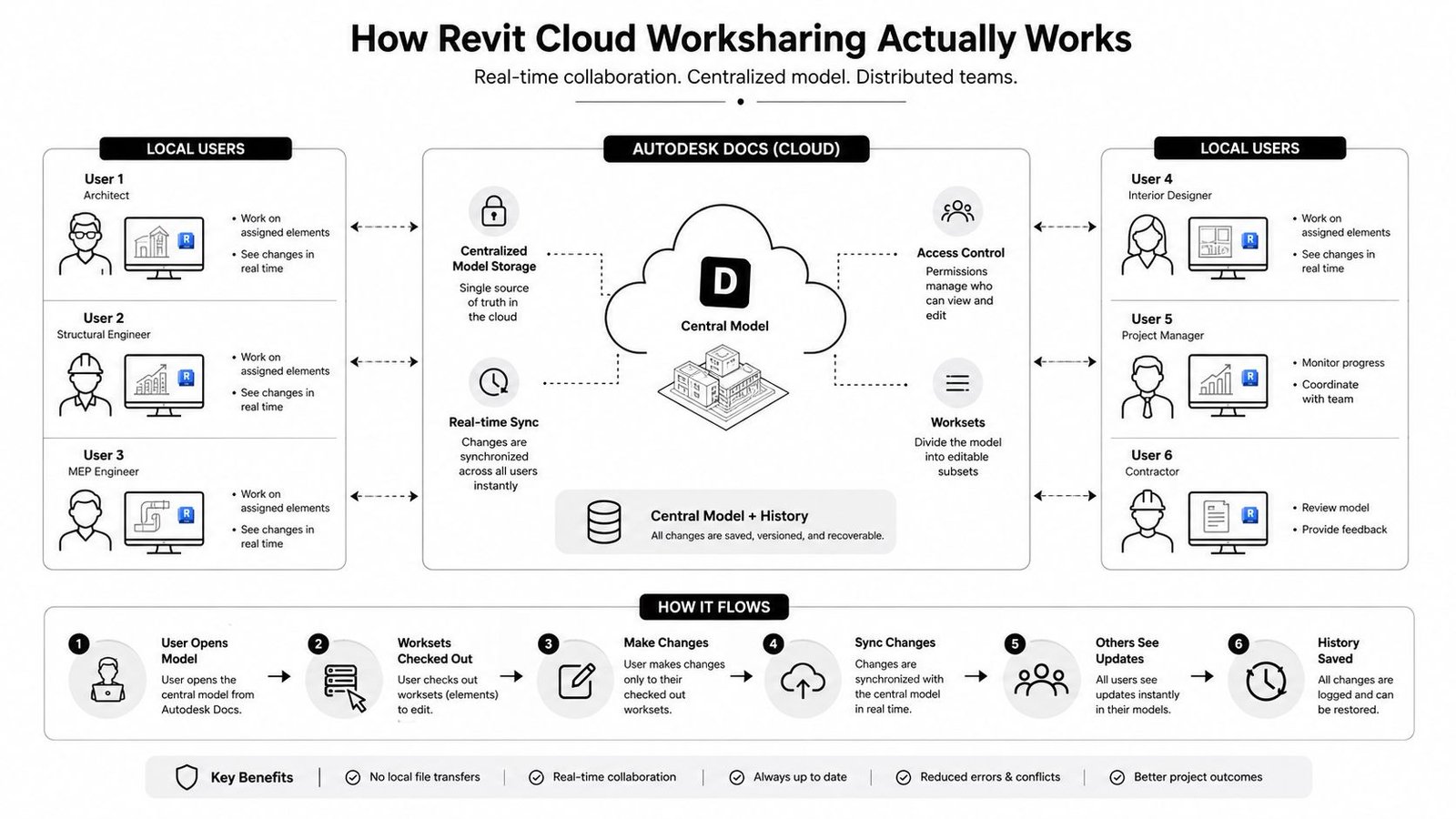
Practical rule: if your team cannot describe where the cloud model lives, how it is accessed, and when changes are pushed, you do not have a worksharing standard yet.
Setting Up Cloud Worksharing the Right Way
The setup phase is where a lot of projects go wrong. Teams usually make the first mistake by treating cloud worksharing like a button they click after the model is already moving. It needs to be planned before anyone starts work, because the first cloud model location, the folder structure, and the workset strategy will shape the rest of the project.
Start with the right project container
Autodesk says a company needs a subscription to the Revit Cloud Worksharing service to use the feature. That makes it a licensed collaboration layer, not a default Revit behavior. Once that is in place, create the cloud model in the correct Autodesk Docs project and folder before the team starts opening copies or linking discipline models. For a fuller setup path, the Autodesk Docs and BIM 360 relationship matters because the cloud container has to be right before coordination starts.
Every user should open the cloud model from Revit or through the correct cloud path, avoiding any stray local copies on desktops. That sounds obvious until a model gets duplicated on a desktop and half the team starts working from the wrong source.
Build worksets with intent
Plan worksets around how the team edits. Discipline-based worksets work well on many projects, zone-based worksets help on larger buildings, and system-based groupings can support MEP-heavy coordination. The point is to keep boundaries predictable so load times stay manageable and people are not fighting over the same editable surface.
Your BIM Execution Plan should define the rules up front, not after the first coordination issue. The same goes for naming and version control, because cloud worksharing only stays manageable when the model is governed like part of the wider document set. For a broader production framework, align the model with your firm's BIM Execution Plan and document management practices.
Don't separate the model from the process
Folder structure, naming, and ownership rules should match the way your team publishes drawings, tracks revisions, and hands off milestones. If the cloud model is disciplined but the rest of the document workflow is loose, the project still drifts.
Network Performance Thresholds for Cloud Worksharing
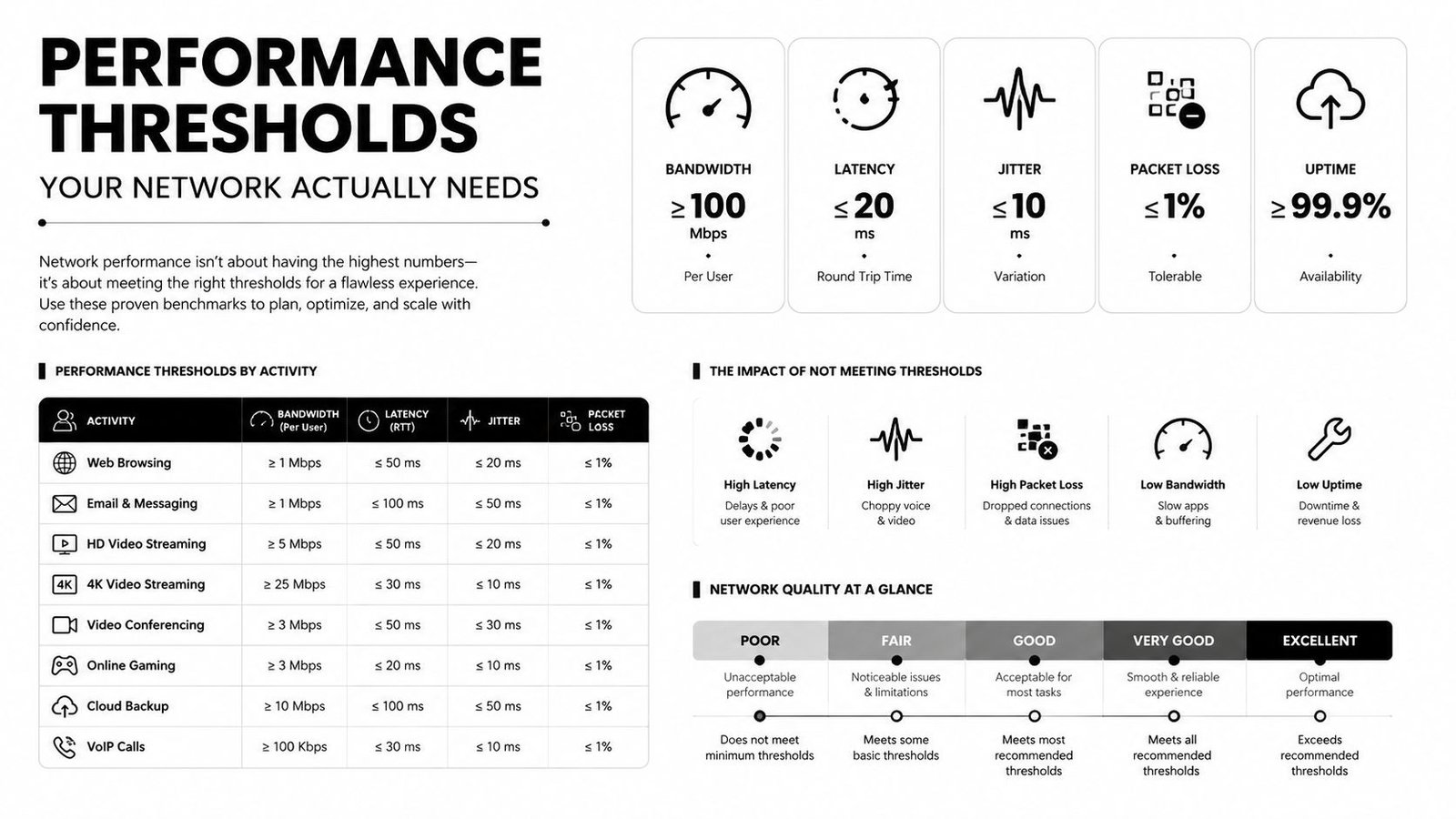
Cloud worksharing feels straightforward on a clean demo file. It feels very different on a large federated project, especially when multiple consultants sync into the same model and the workstation is already under load. That is why the infrastructure numbers matter.
Autodesk's published training guidance cites a minimum symmetrical 5 Mbps connection for baseline use and recommends 15 Mbps per system for smoother download and interaction performance. The same guidance points to AWS-hosted project data in the U.S. or EU data centers, which means the model depends on centralized cloud access rather than local file serving. Autodesk-linked performance discussion also recommends keeping latency at 15 milliseconds or less, while 50 milliseconds is still acceptable for cloud-based Revit work. It also calls for at least 5 gigabytes free on the workstation, roughly 3 times the cloud model payload available locally, and about 20 times the current file size plus linked files in RAM. Autodesk cloud worksharing performance guidance
What those numbers mean in production
Those thresholds are not abstract IT trivia. They explain why a small pilot project can feel fine while a real multi-discipline job slows down once the model, the links, and the users all scale at the same time.
If the network is weak, teams start compensating with longer sync cycles and fewer saves. That is usually when data loss risk rises, not when it falls.
Practical rule: do not approve cloud worksharing for a serious production model until the workstation and network environment are ready for the actual production file, not a test file.
The network performance thresholds for cloud worksharing need to be checked before rollout, not after the team starts complaining about lag. Latency, packet loss, and uptime shape day-to-day behavior just as much as raw bandwidth.
A consultant team on a stable connection can survive a heavier model. A team on a borderline connection will spend more time waiting on syncs, reloading latest, and watching ownership conflicts build up. For a closer look at how Revit collaboration breaks down under load, see this Revit worksharing guidance.
Daily Discipline That Keeps the Team Unblocked
Daily habits decide whether Revit Cloud Worksharing feels orderly or constantly jammed. The setup can be correct and the team can still trip over itself if people sync late, hold elements too long, or edit from stale model state. On live projects, that is usually where avoidable friction starts.
The habits that prevent avoidable friction
- Sync early and often: Don't save up changes until the end of the day. Smaller syncs keep each handoff tighter and reduce the chance that one user blocks the next user with a long, risky update.
- Leave a clear comment: A short note on what changed gives the next person enough context to decide whether they need to reload latest before touching shared geometry.
- Relinquish borrowed elements right away: If you finish editing a wall, view, or family, release it. Holding ownership after the edit is done creates the kind of blockage that shows up right when the deadline tightens.
- Reload latest before major edits: Shared geometry changes should start from the current model state, not from a stale local copy.
- Stagger syncs on larger teams: If everyone syncs at once, the model becomes a bottleneck. Staggering by time or ownership keeps the queue moving.
- Keep a working reference close at hand: A practical guide like Revit worksharing guidance helps the team keep these habits consistent instead of improvising under pressure.
The cleanest teams handle Revit worksharing the way good software teams handle code. They commit in smaller batches, communicate before big changes, and avoid surprise merges.
| Sync Habits That Prevent Common Cloud Worksharing Failures | Failure It Prevents |
|---|---|
| Sync early and often | Large conflict windows and lost time |
| Add clear comments | Confusion about what changed |
| Relinquish borrowed elements | Teammates getting blocked |
| Reload latest before major edits | Working from stale model state |
| Stagger syncs on larger teams | Sync collisions and delays |
A lot of coordination problems are not technical failures. They are discipline failures that repeat until someone stops the pattern. On distributed teams, that usually means deciding who owns what, when people are allowed to sync, and how quickly borrowed elements get released after the edit is done.
The Link Governance Trap Most Setup Guides Skip
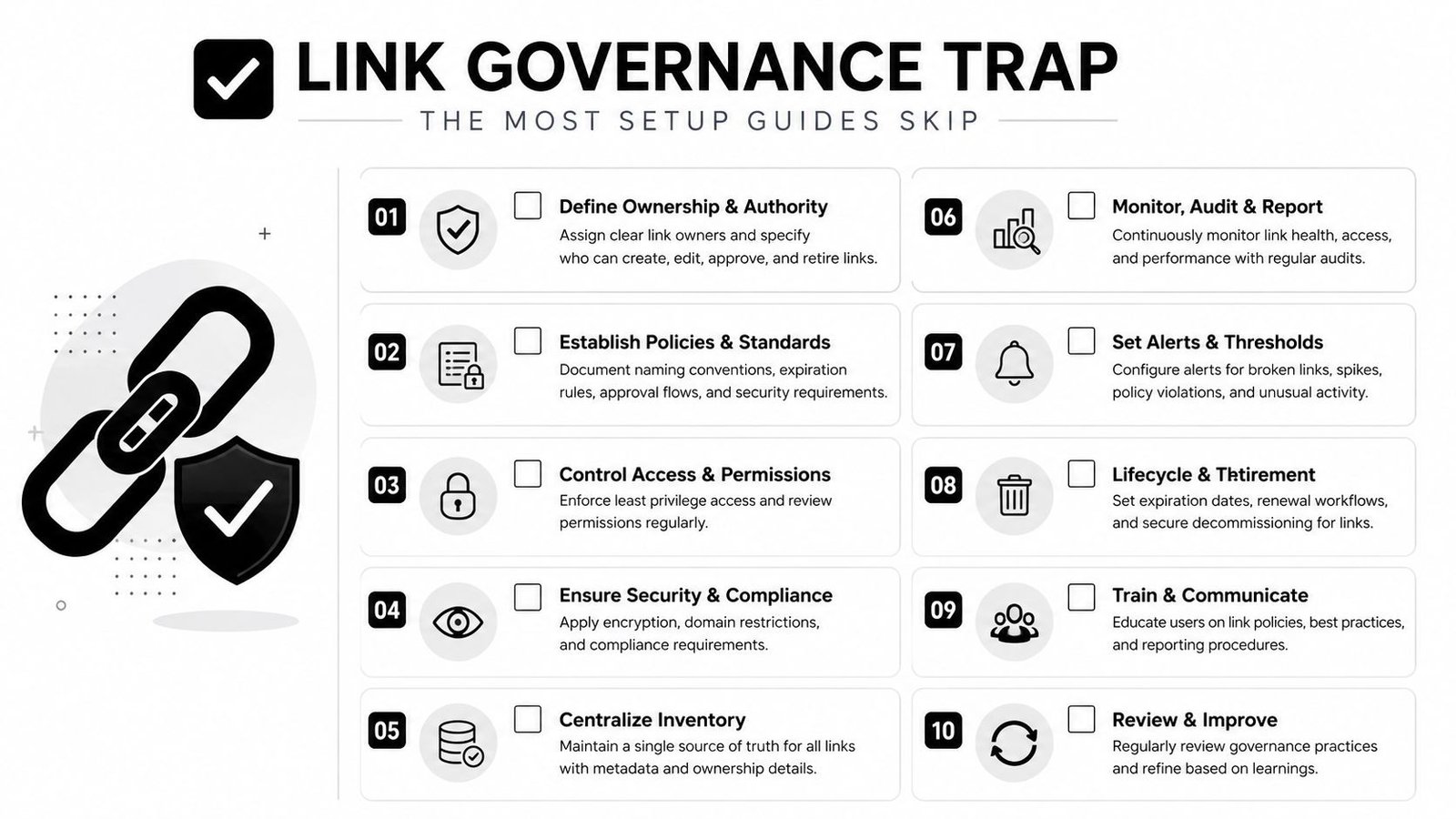
A project can look clean in Revit Cloud Worksharing and still unravel the moment links start drifting out of control. The failure is usually not the cloud model itself. It is cross-project file linking and version control, especially when different teams treat links as something to sort out later.
Links need rules, not improvisation
Autodesk recommends avoiding Revit cloud workshared links through Desktop Connector and instead creating links as cloud models through the External Resource workflow. That choice matters because the wrong link path can create unstable coordination behavior and make it harder to govern what belongs in the model. Autodesk also recommends placing Revit links on separate worksets so they do not clutter the active editing surface. For project governance, that belongs inside the BIM Execution Plan, rather than a late-stage coordination scramble.
Overlay and Attachment need the same level of control. If a host model gets pulled into a linked model as an attachment when it should be an overlay, the team can bring in more coordination than it is ready to manage. The project may keep moving on day one, but the extra noise shows up later in multi-discipline coordination, where every unwanted reference adds friction.
Version consistency is the other part people miss. Autodesk says to verify the same Revit build on all machines because mixed builds can produce unexpected behavior. The practical rule is straightforward. Keep the build aligned, keep the links separated, and keep upgrade discussions inside the project standard instead of a last-minute message thread.
A Cloud Worksharing Checklist You Can Hand to a Partner
A mature partner can answer these questions without hesitation. If they can't, they probably don't have the model management discipline you need on a live project. That matters whether you're running an internal team or deciding whether to outsource Revit production.
Pre-flight checks for a healthy central model
- Licensing confirmed: The team has the right subscription for Revit Cloud Worksharing before the project starts.
- Cloud model location set: The model lives in the correct Autodesk Docs project and folder.
- Workset plan documented: Discipline, zone, or system ownership is defined before production ramps up.
- BEP and naming rules agreed: Version control and folder naming align with the project standard.
- Network and workstation benchmarks checked: Latency, bandwidth, disk space, and RAM are reviewed before large-scale collaboration begins.
- Link governance defined: Cloud links, External Resource handling, and Overlay versus Attachment rules are written down.
- Daily sync cadence set: The team knows when to sync, when to relinquish, and who owns larger coordination events.
- Archive and backup routine set: Milestones use detach-and-save-new, and the central model is backed up on a defined cadence.
- Maintenance scheduled: Audit, compact, purge unused, and link cleanup happen as part of the model health rhythm.
- QA ownership assigned: Someone is responsible for checking that the central model stays healthy instead of waiting for users to report problems.
That checklist is also a process-maturity signal. Firms that handle cloud worksharing well tend to handle outsourced production, scan coordination, and deliverable control the same way, with standards first and heroics last.
If you want a production team that treats Revit models with that kind of discipline, BIM Heroes can help with outsourced Revit production, scan to BIM, and coordinated model delivery that's built around the central model, not around guesswork. Send us your model or point cloud, and we'll help you map the cleanest path to stable collaboration, clearer handoffs, and fewer surprises in the next sync.