


Meta description: Revit model errors rarely start where they show up. Learn how warnings, families, phases, worksharing, and revit cut geometry issues create hidden failures that break exports, schedules, and syncs.
A Revit model can look completely under control right up to the moment it fails.
You issue a sync-to-central before a deadline and get a conflict nobody can explain. A DWG export goes out with broken linework that never appeared in Revit. An IFC handoff drops objects that were clearly visible in 3D. A schedule counts elements that nobody can find in the model. The geometry looked fine. The production file was not fine.
That gap is where expensive Revit model errors live.
Revit doesn't reward teams for making a model look clean. It rewards teams that keep the underlying data coherent. That includes warnings, family behavior, hosting logic, phase assignment, joins, and revit cut geometry behavior that seems minor until it breaks coordination. If you're diagnosing by eye, you're checking the receipt, not the ledger.
The Hidden Risks of a Visually 'Clean' Revit Model
This situation is commonly encountered. The model publishes clean views, the client markups are minor, and the internal review feels calm. Then one operation exposes the actual condition of the file. Sync breaks. Export fails. Tagging behaves inconsistently. A consultant reports missing or duplicated objects that your team swears were modeled correctly.
That isn't unusual. It's production reality.
Revit can display geometry that appears stable while the element behind it carries broken relationships, unresolved joins, bad hosting behavior, duplicate instances, or family definitions that only fail under certain conditions. The model isn't lying visually. It's just not telling you the whole story.
A lot of these failures show up around cuts and openings because revit cut geometry sits at the intersection of form, host logic, phase behavior, and family setup. A clean-looking opening in a wall or floor can still be backed by a void setup that fails in export, misbehaves across options, or stops cutting when the model context changes. The broader pattern is covered well in this breakdown of hidden geometry errors that break Revit models.
The dangerous files aren't always the messy-looking ones. They're often the files that look finished while carrying unresolved internal contradictions.
A visually clean model can still be a liability in permitting, coordination, and handoff. That's why mature BIM teams audit behavior, not appearance.
Why What You See Isn't What Revit Stores
A model can look settled on screen and still be carrying bad data underneath. Revit builds every view from stored relationships, parameters, host behavior, phasing, joins, and ownership records. What shows up in plan or 3D is only one result of that logic, not proof that the underlying element is healthy.
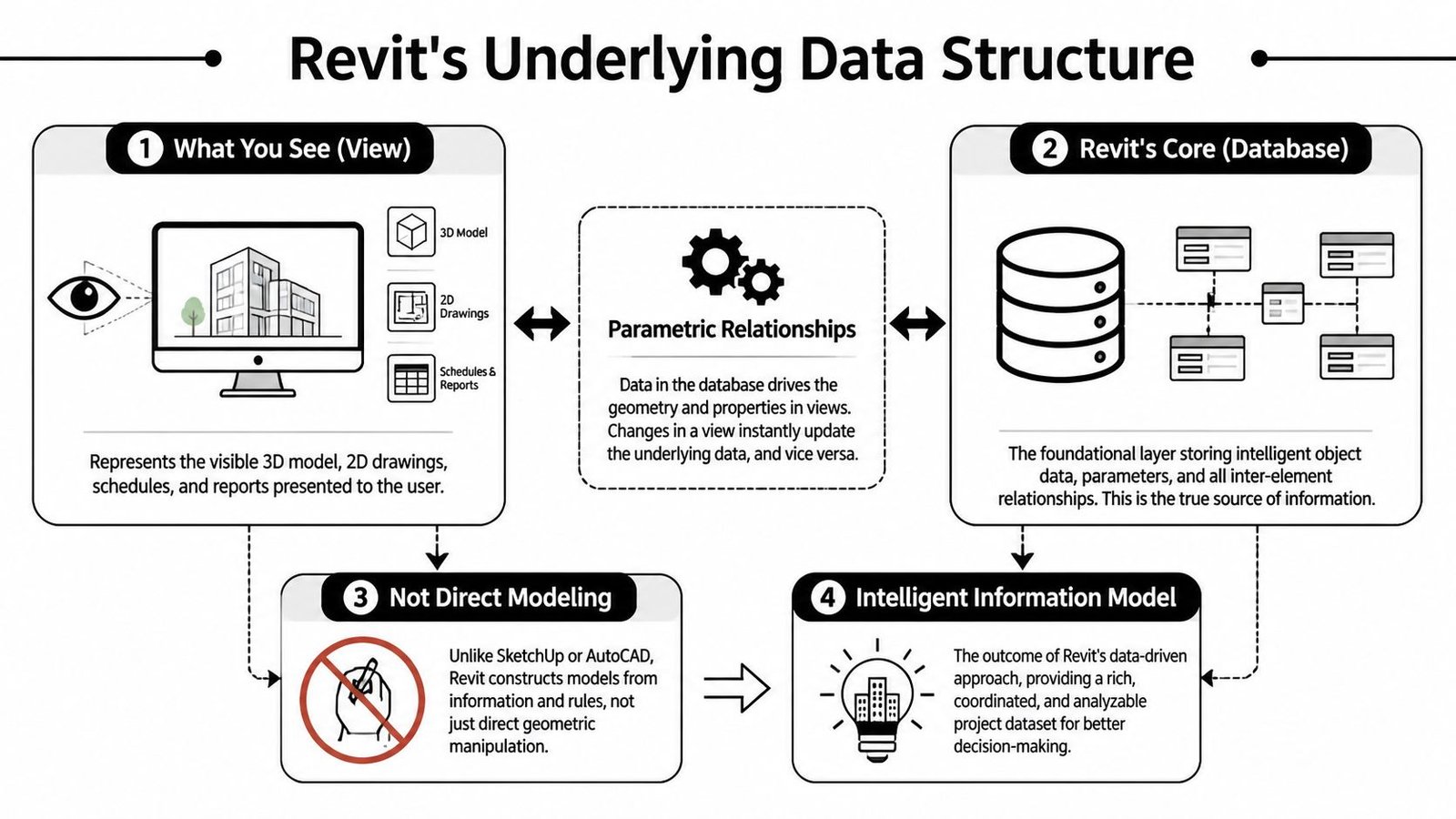
That distinction matters in production because teams usually review graphics first. They orbit the model, open a few sections, check a sheet, and move on. Revit does not fail that politely. The expensive problems sit in the element logic. A wall can display correctly while carrying unstable joins. An opening can look right while the host relationship behind it is weak or context-dependent. A family can appear fine at one size and break the moment someone changes a type, phase, or option.
Cuts are a common trap because they expose the gap between display and storage fast. Teams see a clean opening and assume the condition is resolved. In many files, the visible cut is only the surface result. The actual setup may still rely on a void that behaves differently in family context than it does in the project, or on geometry intersections that are close enough to display but unreliable for schedule logic, coordination, or export.
I see this most often when users treat the Cut Geometry command and void-based cutting as if they are interchangeable. They are related, but they do not behave the same way in every context. A model can show the result you expected and still store relationships that fail when the host changes, the family is reloaded, or the file is exported to another platform.
Views can be correct while the data is not
The practical problem is simple. Revit views are filtered outputs. Visibility settings, phase filters, design options, worksets, detail level, category overrides, and element properties all affect what appears to be true. That means a correct-looking view can hide a bad condition for weeks.
Here is where teams get caught:
| What looks fine | What may actually be broken |
|---|---|
| Opening cuts cleanly in view | Void behavior, host relationship, or phase assignment is unstable |
| Family looks correct at placed size | Reference planes, formulas, or nested content fail under change |
| Schedule seems plausible | Duplicate, unplaced, or mis-phased elements are still being counted |
| Model opens normally | Worksharing history, ownership, or element relationships are already compromised |
This is why visual QA misses so much.
The model element is the primary asset. The view is only a report of its current state. If that element has contradictory rules, weak host logic, or broken dependencies, the file is already degraded even if every sheet in the set looks clean.
Revit Warnings The Ignored Indicator of Model Decay
Friday at 4:30 PM, the model still looks fine. Sheets plot. Sections read clean. Then syncs start failing, an export drops elements, and somebody opens Review Warnings for the first time in weeks. That is usually the point where the team realizes the graphics were never the actual status report.
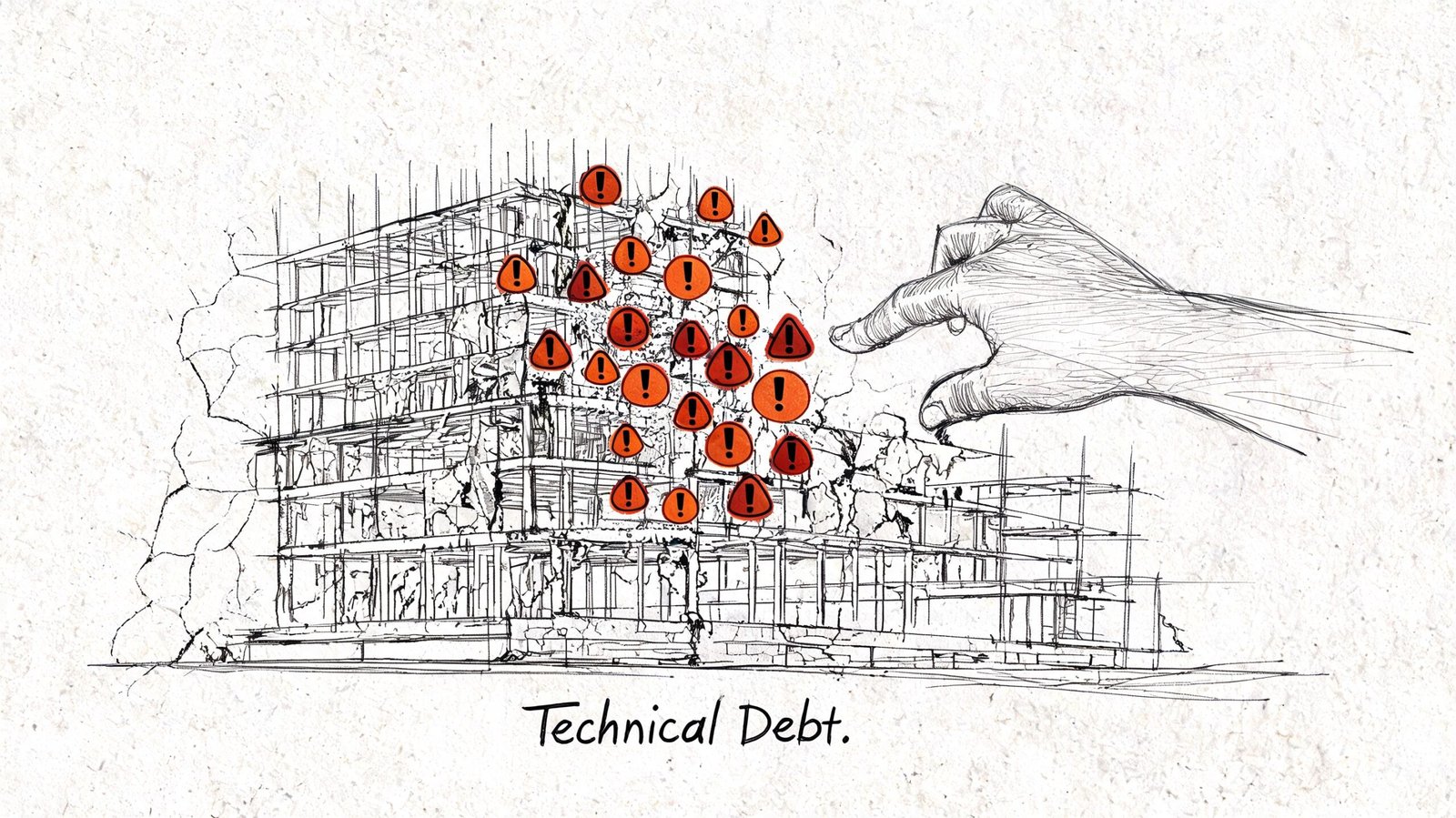
Warnings are one of the few places where Revit exposes stress in the model database before a major failure. Teams ignore them because the file still opens, views still look acceptable, and no single warning seems expensive on its own. In production, that logic fails fast. Repeated warnings show where element relationships, constraints, hosting logic, or ownership history are already degrading.
The count matters less than the pattern.
A few isolated warnings after heavy modeling work are normal. A persistent cluster of the same warning type across levels, linked conditions, or family instances points to a system problem. That is model decay. It spreads unnoticed because the visible model can stay clean while the stored relationships underneath it get less reliable.
The warnings that deserve immediate triage
Some warnings create nuisance work. Others distort quantities, destabilize edits, or set up export failures later.
- Duplicate elements: The view may read as one object. Schedules, clash checks, and quantities read two.
- Elements not in a good position: This often signals coordinate drift, bad placement logic, or geometry close to tolerance limits.
- Overlapping walls or floors: Graphics can look acceptable while areas, volumes, joins, and material takeoff logic become unreliable.
- Constraint conflicts: The element may appear stable, but the rules controlling it are already fighting each other.
- Room, space, or boundary warnings: These are often treated as documentation noise. They regularly become scope and quantity problems.
Why cut behavior belongs in warning review
Cut failures should never be treated as an isolated visual issue. In revit cut geometry workflows, a failed cut often exposes a deeper condition in the model. The host may be joined in a way that blocks the operation. The void may not intersect the target geometry. The family category may not support the cut you are trying to force. The result in one view can still look acceptable while the underlying relationship is unstable.
That is why I review cut-related complaints and warning patterns together. If the same family produces placement warnings, join conflicts, or repeated cut failures, the problem is rarely the one command the user clicked. It is usually bad family logic, weak host assumptions, or geometry built too close to Revit's tolerance.
Autodesk documents that cuts and joins are context-dependent, especially across family categories, hosts, and joined geometry conditions, in its Revit Help guidance on cut and join behavior. Practical field guidance for openings and coordination makes the same point from the user side in Novedge's Revit cut geometry best practices for openings and model coordination.
Field rule: If the same warning repeats across multiple families, levels, or worksets, assign it to a root cause category and fix the source. Do not let the team clear symptoms one instance at a time.
Warnings are not housekeeping. They are early evidence that the model you see and the model Revit stores are starting to diverge. That gap is where rework, failed exports, and deadline-week corruption usually begin.
When Good Families Cause Bad Project Problems
A project team loads a manufacturer family, places it in one wall type, and it looks fine. Two weeks later, the opening stops cutting in enlarged plans, the schedule reports inconsistent values, and a coordination export drops part of the geometry. The family did not suddenly become bad. The project finally applied enough pressure to expose what Revit was storing underneath the clean display.
This is why family review has to go past appearance. A family can render cleanly, flex once, and still carry unstable constraints, weak hosting logic, or parameters that break downstream behavior. In production, those flaws show up after type swaps, host changes, phase changes, group placement, or export.
Good-looking content causes some of the most expensive failures because teams trust it too early.
The flaws that stay hidden until the model is under load
Several family defects stay quiet during a quick placement test and only surface in active project conditions:
- Reference structure that is technically valid but unstable: Geometry aligns at one tested size, then shifts or loses its fixed position when dimensions change.
- Incomplete flex testing: The family works at common sizes but fails at the limits the project requires.
- Nested family assumptions: A nested component may bring its own host behavior, shared settings, or category rules that conflict with the parent family.
- Visibility and subcategory problems: The object looks correct in Revit views, then behaves inconsistently in consultant views, filters, or exports.
- Formula failures at edge values: A formula can return acceptable results for standard types and still break when a user enters an uncommon width, depth, or clearance.
The dangerous part is not the visible glitch. It is the mismatch between the geometry on screen and the element relationships, parameters, and cut behavior Revit is trying to maintain in the database.
Family-based cuts expose weak construction fast
Cut geometry failures often identify family quality problems before teams realize they have a content problem. The void may be modeled correctly enough to appear right in one condition, but the cut relationship can still fail when the host changes, the family is mirrored, or the instance is copied into another context.
For family-driven cuts, the setup has to be exact. The void must fully intersect the host. Cut with Voids When Loaded must be enabled if the family is expected to cut after placement. The family category and host type still control whether Revit will allow the cut behavior the team expects. Mashyo's step-by-step cut geometry methodology for Revit is a useful reference for the mechanics, especially the reminder that weak or partial intersection is a common reason cuts fail.
I treat any family that cuts correctly only in one test case as unproven content. If it has not survived type swaps, host swaps, mirrored placement, schedule checks, and a shared-model workflow review, it is still a risk. Teams that need a process baseline for that last part should align family validation with Revit worksharing workflows that reduce sync and ownership conflicts, because some "geometry issues" start after the family enters a live central model.
A family is production-ready only after it survives repeated changes without breaking cuts, data, or coordination outputs.
Worksharing Errors Disguised as Geometry Glitches
Some of the ugliest geometry complaints aren't geometry complaints at all. They start in worksharing.
An element shifts after sync. A hosted object reverts. A user swears they moved an opening, but another user sees the previous state. Teams often chase the visible symptom and miss the actual cause: ownership conflicts, stale local files, bad save habits, or central-model history that has gone unreliable.
What the team sees versus what's happening
A borrowed element conflict can leave geometry appearing stable in one user's session while related parameter or host changes were resolved differently during sync. The display isn't always enough to tell you which version of the truth won.
A similar problem appears when teams use unsafe save workflows on workshared files. A central model can still open and look normal while synchronization becomes inconsistent because the issue sits in element ownership records and model history, not in the visible geometry.
Use this guide to Revit worksharing workflows as a baseline if your team still treats sync errors as random user mistakes instead of predictable process failures.
A quick diagnostic split
When something odd appears in a shared model, check these before remodeling the object:
- Who owned it last: Confirm borrowing and relinquish history.
- What changed on sync: Review whether the visible issue started after a sync, reload latest, or local recreation.
- Whether the geometry is just the symptom: Hosted cuts, tags, openings, and joins often fail second. Worksharing failed first.
Teams waste a lot of hours redrawing things that were never geometrically wrong.
How Phases and Design Options Hide Data Flaws
A coordination view looks clean. The opening shows in plan. The wall reads correctly on the sheet. Then demolition quantities are off, an option set drops a penetration, or an export misses the cut entirely. The problem was never the view. The problem was the data state Revit stored behind it.
Phases and design options hide some of the most expensive model errors because they split visual output from element logic. A host, a void, and the view can appear to agree while the database records a different story about when that element exists, which option owns it, or whether the cut relationship is valid in that project state.
Phase errors often show up somewhere else
Wrong phase assignment rarely announces itself as a phase problem. It shows up as bad takeoff numbers, inconsistent demolition graphics, missing penetrations in renovation views, or cuts that work in one view and fail in another.
This matters with cut geometry because Revit evaluates relationships in context. If the host and the cutter do not exist together in the same effective phase condition, the result can look acceptable in a working view and still be unreliable in schedules, option views, or downstream exchanges. As noted earlier, teams also confuse family-level void settings with project-level cut behavior, which makes phase-related cut failures harder to diagnose.
Design teams run into the same trap during handoff. A model can look resolved in documentation views and still carry phase logic that breaks exchange outputs. That is why teams responsible for neutral-format deliverables should treat IFC drawing workflows and handoff requirements as a model health issue, not just an export task.
Option cleanup leaves residue
Design options create another layer of false confidence. Accepting or deleting an option does not guarantee every dependent relationship was cleaned up. Elements can retain bad references, schedule oddly, or keep visibility behavior that only appears under a specific option or phase combination.
I see this after late-stage option consolidation. The team believes the model is simpler because fewer options remain. In practice, that is often when hidden errors survive, because nobody goes back to test host relationships, category behavior, or phase alignment after the option decision is locked.
Audit these conditions on purpose:
- Phase Created and Phase Demolished: Check the actual element properties, not just the active view result.
- Phase filters in production views: Confirm the view is showing the intended project state and not masking a bad assignment.
- Option membership: Verify whether the element is in the main model, a primary option, or still tied to an abandoned branch.
- Host-cutter relationships after edits: Re-test cuts after option acceptance, phase remapping, or major view-template changes.
A clean screen proves very little here. Audit the stored relationships, or the model will stay visually convincing right up to the point it fails.
The Link Between Invisible Errors and Export Failures
Friday afternoon is when this usually surfaces. The model looked fine all week. Then the IFC, DWG, or NWC export drops openings, duplicates geometry, or throws category errors that nobody saw in production views.
Exporters read the model database, not the screen. That distinction is where teams lose time. Revit can display a cut, join, or family condition that looks resolved in a view while the stored relationships underneath are weak, inconsistent, or translator-hostile. The handoff process exposes that gap fast.
I treat failed exports as a model integrity problem first. Duplicate instances, invalid hosts, nested family behavior, category mismatches, and unstable cut relationships often stay hidden until another platform has to interpret them. The export did not create the problem. It revealed it.
Where revit cut geometry becomes a business risk
Cut geometry is a common failure point because the visual result can hide bad setup. A void may appear to cut cleanly in Revit, yet export poorly if the host is wrong, the family was built with improvised logic, or the relationship depends on conditions the target format does not carry well.
That becomes expensive at handoff. Coordination teams receive missing penetrations. Quantity checks pick up duplicate openings. Fabrication or field teams start asking which result is real: the drawing, the schedule, or the exchanged model.
For teams issuing neutral-format deliverables, IFC drawing workflows and handoff requirements belong in QA, not at the end of production. If the model only works inside the authoring environment, it is not ready. It is a liability with a polished screen.
A bad export usually points to a problem that was already in the file, already affecting confidence, and already costing margin.
A Practical Framework for Auditing Model Health
A model can look stable at 4:00 PM and still fail a deliverable at 8:00 AM the next day. That usually happens because the team reviewed views, not the conditions Revit is storing.
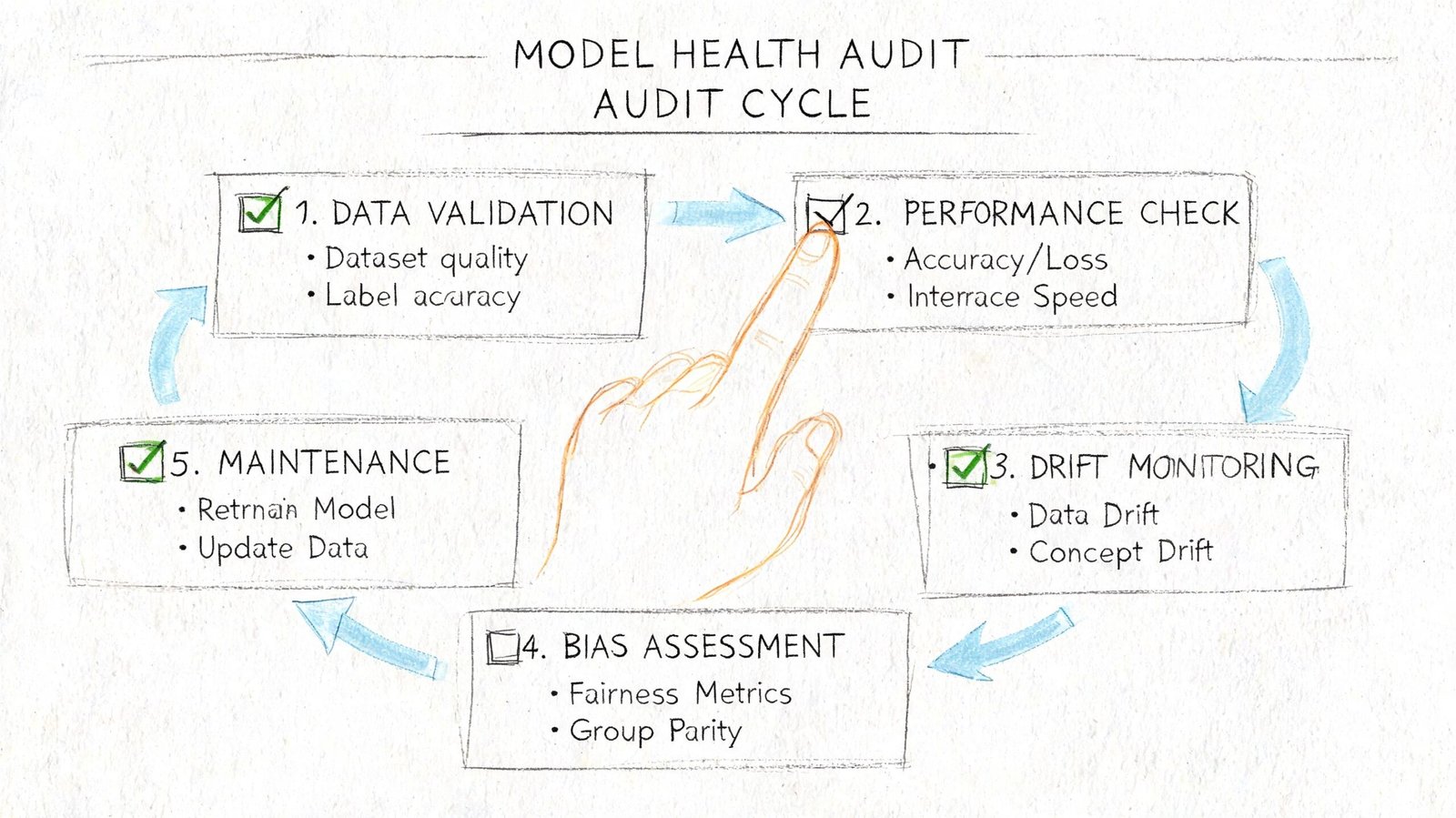
The answer is a scheduled audit cycle. Short, repeatable checks done during production catch failures while ownership is clear and the fix is still cheap. I have seen teams spend less time on weekly audits than they later lose to one round of confused coordination comments.
A production-ready audit rhythm
Use the same sequence every week and before every milestone:
- Review warnings by failure type: Start with duplicate instances, room separation issues, constraints, missing hosts, and anything tied to groups or links. The warning count matters less than the pattern.
- Test families outside the live project: Flex parameters through realistic ranges. Check nesting, host behavior, shared status, formulas, subcategories, and visibility controls. A family that behaves in one placed condition can still be unstable.
- Verify cut conditions on purpose: Recheck host category, actual intersection, void permissions, join order, and whether the cut survives copy, mirror, and type swaps. Visual success in one view is not enough.
- Purge with control: Remove dead content from an audit copy first. In workshared files, casual purging can break standards, confuse ownership, and reintroduce content through old local habits.
- Export from a detached audit file: Run the same formats your team owes downstream, then inspect what survived and what changed. Export review is part of model QA, not a final clerical step.
What mature teams standardize
Reliable teams turn this into a standing operating check, not a rescue effort. They assign ownership, log recurring issues, and watch for repeat offenders such as one family library, one linked discipline model, or one user workflow that keeps creating the same warning cluster.
Practical checkpoint: Before every issue set, audit warnings, family behavior, phase and option visibility, and export results in one pass. Those items fail together more often than teams expect.
The goal is not a perfect file. The goal is a file where hidden conditions are known, tested, and no longer waiting to become a cost problem.
Conclusion Beyond Visuals
The core problem is simple. In Revit, visual correctness is not model health.
The failures that cost the most time usually live below the view layer. They sit in warnings, family construction, worksharing history, phase logic, and revit cut geometry relationships that were never validated under production conditions. By the time they show up in schedules, exports, syncs, or consultant coordination, the fix is slower and more expensive.
A mature team doesn't wait for visible symptoms. It audits the model as a system.
If you're approaching a milestone, consultant handoff, permit issue, or model exchange, an internal health check is one of the most impactful actions you can take. It protects margin, reduces avoidable RFIs, and makes delivery more predictable.
If you'd like a practical next step, BIM Heroes shares production-focused BIM guidance built around checklists, workflows, and model QA habits that help teams catch hidden errors before they turn into deadline problems.