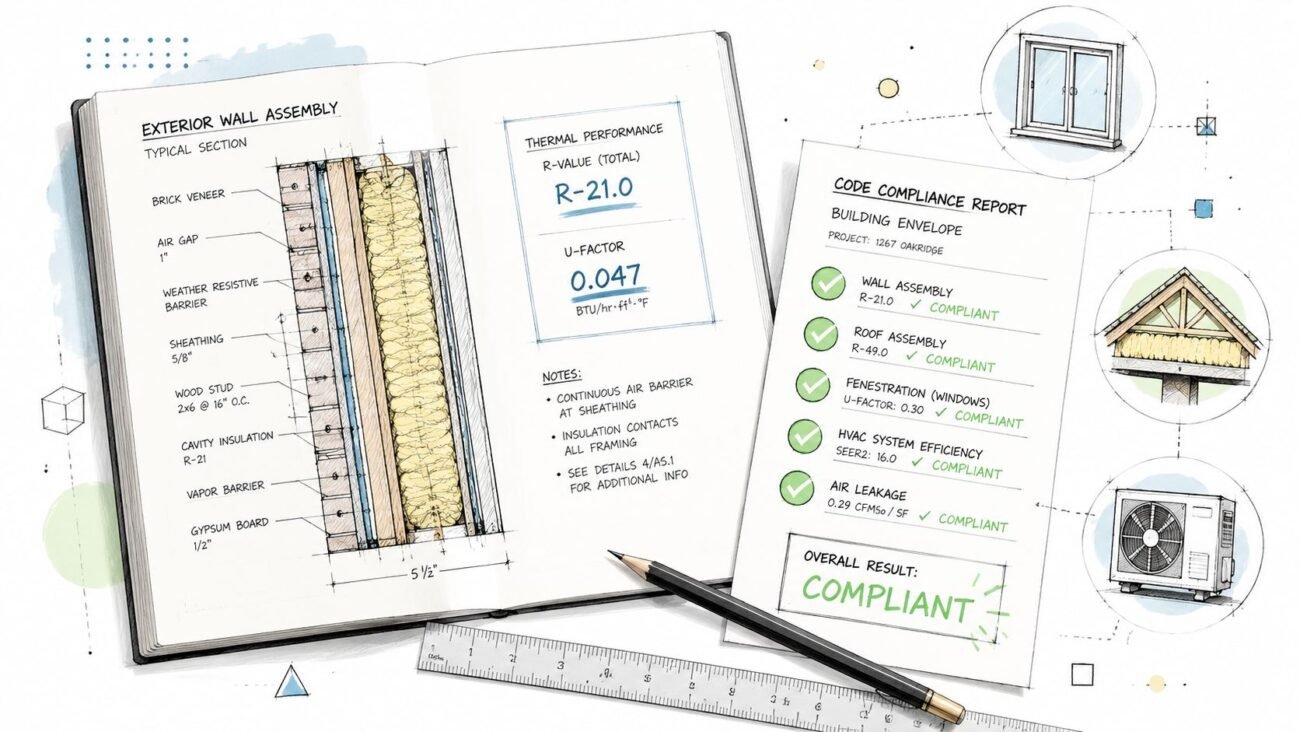
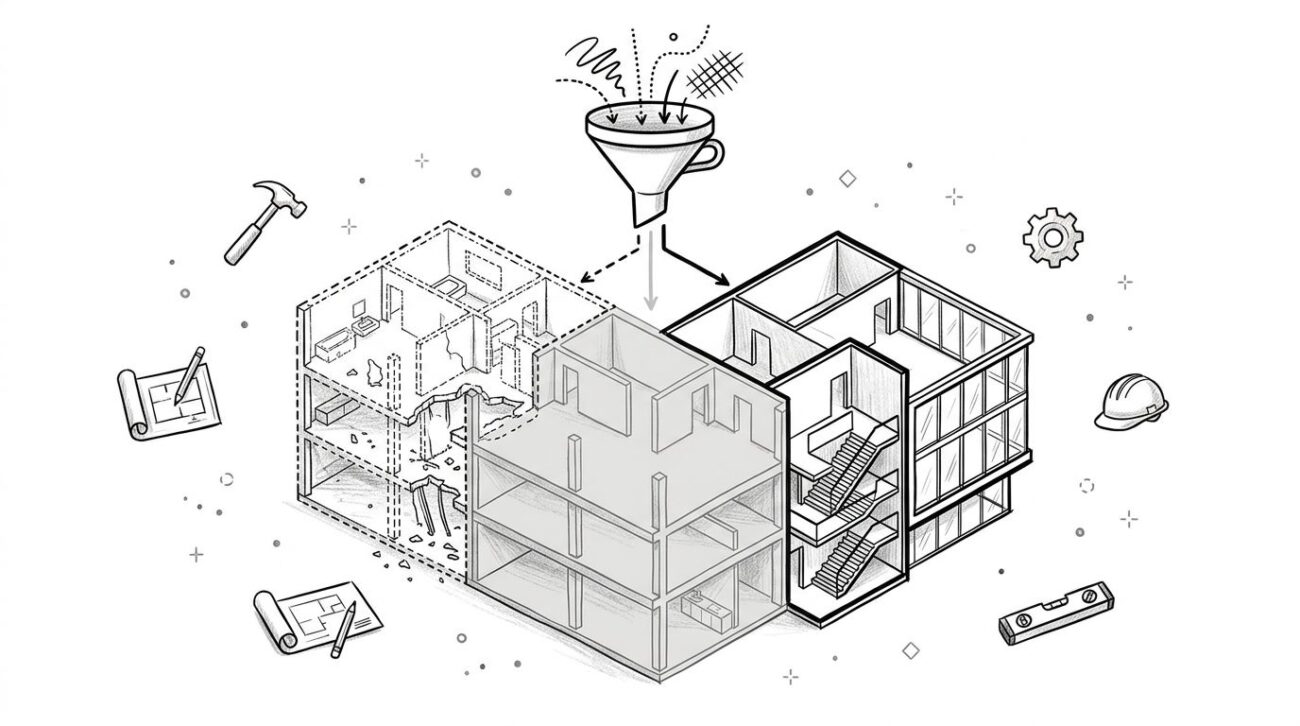
Most firms don't avoid Revit keynotes construction documents because the tool is weak. They avoid them because typed notes feel faster when a project is moving. Click, type, place, done. That shortcut works for a day and then starts charging interest for the rest of the CD phase.
Every manually typed note becomes a coordination liability. One wall build-up changes, one finish shifts, one membrane spec gets revised, and someone has to remember every place that text was copied into the set. That isn't a drafting habit. It's a production risk. Revit keynotes were built to solve exactly that problem, but many teams either never implement them or set them up once, badly, and decide the system is the issue.
Used properly, keynotes create a controlled annotation workflow. The payoff is cleaner legends, fewer missed updates, and a CD set that behaves like a coordinated system instead of a pile of view-specific notes.
Introduction
The popular advice is that text notes are simpler, so they're better for fast-moving production. That advice falls apart the minute a project starts changing. In most offices, text notes get typed directly into views, copied from detail to detail, and edited by whoever touches the sheet last. It feels efficient until the set reaches permit, pricing, or addenda and nobody trusts whether every note still matches the model, the assembly, or the spec.
That's why keynotes in Revit matter. Revit's keynote workflow was designed to keep annotation tied to a controlled external source instead of scattered text on sheets. The software offers a more robust approach than typical, ad-hoc annotation habits. A disciplined Revit keynote system doesn't just improve drafting. It improves consistency, reduces revision risk, and makes CD production more predictable across teams.
The Hidden Cost of Manual Text Notes
Manual text notes feel efficient because they postpone discipline.
At the start of a project, that looks harmless. A team can type a note, copy it to the next detail, and keep sheets moving without stopping to set up standards. The cost shows up later, when the wall type changes, the spec section shifts, or a consultant comment forces a round of revisions across multiple views. Every copied note becomes a separate coordination task.

Why manual notes create downstream risk
The problem is not drafting speed. It is loss of control.
A manually typed note has no reliable relationship to the model, the material definition, or the office standard. Once it gets copied from view to view, it starts drifting. One enlarged detail still says rigid insulation. Another was edited to mineral wool. A third note kept the old fastening requirement because nobody reopened that dependent view after the last revision. By issue time, the sheets are carrying conflicting instructions even if the model and spec were updated correctly.
That mismatch is expensive. It leads to RFIs, rechecking, and late sheet cleanup by senior staff who should be focused on coordination and quality review, not hunting stray annotation. On fixed-fee work, that is margin erosion.
Practical rule: If a note is expected to repeat, revise, or appear in more than one view, it should be controlled as project data, not typed as free text.
There is a trade-off here. Text notes are still fine for one-off sheet communication, temporary design studies, or highly specific clarifications that will never need to be managed globally. The mistake is using them for repeatable construction information. That is where offices confuse short-term drafting convenience with a production standard.
Keynotes change that operating model. Instead of treating annotation as isolated text objects, teams manage repeated notes from a shared source and place tags where the information is needed. That reduces manual edits, tightens consistency across sheets, and gives QA reviewers one place to verify note language.
The benefit is operational, not cosmetic:
- One controlled note source for repeated construction language
- One revision path instead of sheet-by-sheet text edits
- Cleaner QA review because teams check note standards centrally
- Lower coordination risk between model content, sheet annotation, and issued documents
Firms that adopt keynotes successfully usually see the same shift. Annotation stops being personal drafting style and becomes part of production control. That is the point. A disciplined keynote system protects consistency, shortens revision time, and makes document sets easier to trust.
Understanding the Revit Keynote System Components
Keynotes succeed or fail on system design, not tagging speed. Teams that treat them as a drafting feature usually end up with inconsistent notes, bloated user-keynote lists, and legends no one fully trusts.
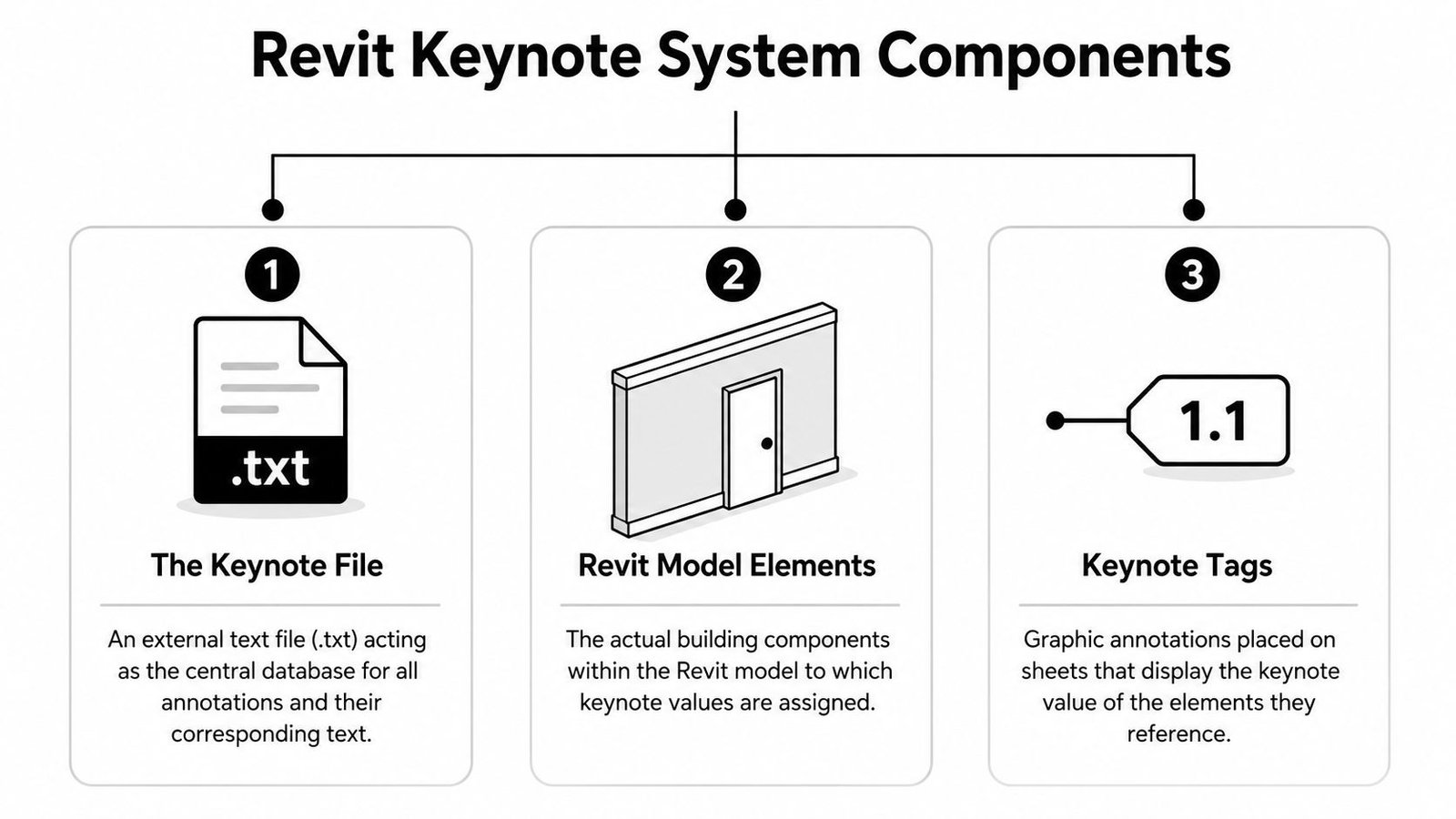
A reliable Revit keynote workflow has three connected parts. If one is weak, the whole production chain gets shaky.
The three parts that matter
The keynote file is the controlled source. Revit reads keynotes from a tab-delimited external text file where each code is paired with a description. That file supports element keynotes, material keynotes, and user keynotes, which means the team has to decide what kind of information should be driven by model data and what should stay project-specific.
The keynote tag is the annotation placed in the view. It displays the keynote number associated with the element, material, or selected user entry. In production, that matters because the tag is only as reliable as the data behind it. If the source is inconsistent, the sheet will be inconsistent too.
The keynote legend translates those numbered tags into readable note text on the sheet. It compiles the keynotes used in the view or sheet into a coordinated list, which cuts down repeated note text and gives QA reviewers one place to verify language.
That division of roles is what makes the system useful. The file controls language. The tag places it. The legend publishes it.
Choosing the right keynote type
Selection discipline matters more than teams expect. If the office uses the wrong keynote type, the system still works technically, but it starts producing avoidable coordination problems.
| Keynote type | Best use | Common mistake |
|---|---|---|
| Element keynote | Whole assemblies or component types like walls, roofs, doors | Using it for finish surfaces that vary by material |
| Material keynote | Finish layers and surfaces in elevations and details | Expecting it to describe the whole element assembly |
| User keynote | Project-specific conditions that don't map cleanly to modeled data | Using it as a replacement for a standards-based system |
A Revit element keynote fits conditions where the note should follow the family type or assembly every time it appears. A material keynote is better when the note needs to describe a finish, coating, or layer that can appear across different elements. A user keynote covers exceptions, but it needs limits. Without rules, user keynotes become a back door to unmanaged annotation, and that defeats the point of standardization.
The trade-off is straightforward. Element and material keynotes take more setup discipline, but they scale better and reduce sheet-level variation. User keynotes are faster in the moment, but they shift control from the standard to the individual user.
The wrong keynote type creates sheet inconsistency, weaker QA, and more cleanup late in the job.
Production teams that run keynotes well are not just placing tags correctly. They are classifying information correctly at the start, so the same note behaves predictably across details, plans, elevations, and future revisions. That is what turns keynotes from a Revit feature into a production standard.
How to Set Up and Link a Shared Keynote File
If the keynote file isn't shared correctly, the rest of the system won't hold.
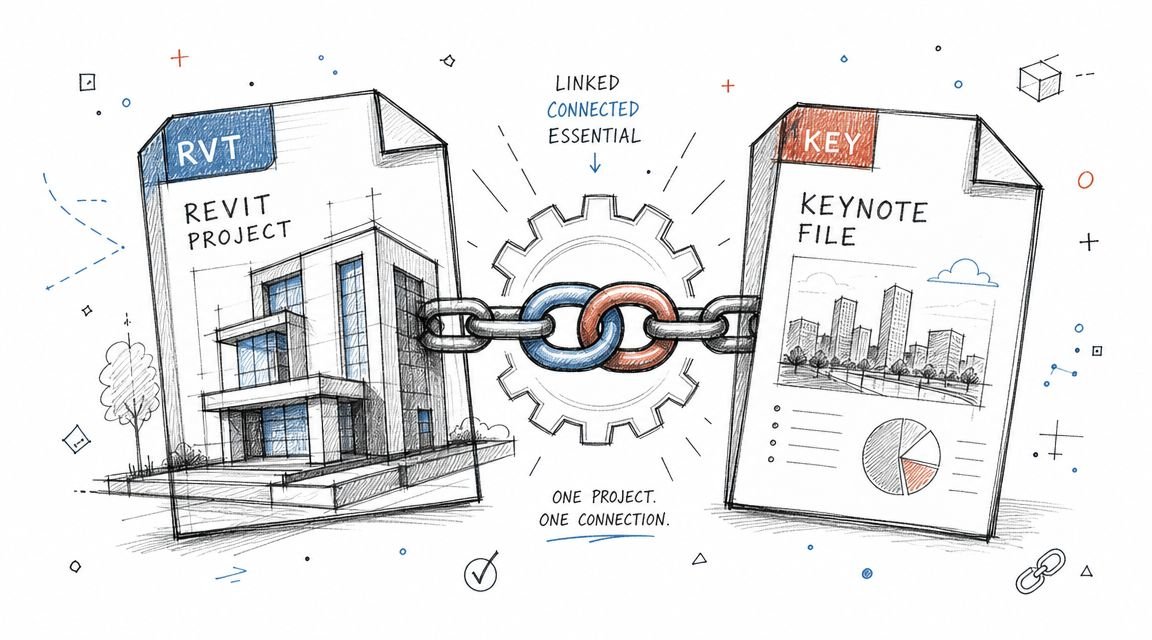
Revit keynotes are driven by an external tab-delimited .TXT keynote file that can be shared across projects, which makes the system a standards-control tool rather than a freeform note method (HCMA keynote guide on external TXT file workflow). That's the core idea to protect. The file must be treated like office standard content, not a personal project aid.
Where the file should live
Put the keynote file in a shared location that the whole team can access consistently. If one user links a local file from a desktop or personal project folder, everyone else inherits the risk. Missing paths produce broken keynote behavior and wasted troubleshooting time.
Use one controlled location and make it part of project setup. Then point the model to it through Annotate > Keynoting Settings before anyone starts tagging.
How to structure the file
Most firms should not rely on the default file without review. It's better to create a firm-standard structure that matches how your office documents work.
A practical structure usually includes:
- A consistent numbering logic tied to your spec organization or an office-friendly version of it
- Short descriptions that read clearly in a legend
- Language discipline so one material isn't called three different things across projects
- A review process before adding new entries
Descriptions should be precise enough to be useful on a sheet. “Insulation” is weak. A concise, specific assembly description is stronger because the contractor can connect it to the right requirement without guessing.
Link it before production starts
Treat keynote setup as a pre-production checkpoint, not a cleanup task.
Assign someone to confirm:
- The file path is correct
- The project template points to the right standard
- The team is using the same source
- The model has been checked before sheet annotation begins
That same discipline is what separates a stable BIM environment from one that slowly drifts into project-by-project improvisation.
A Practical Guide to Assigning Keynotes in Your Project
Linking the file is only half the job. The model has to carry meaningful keynote values.
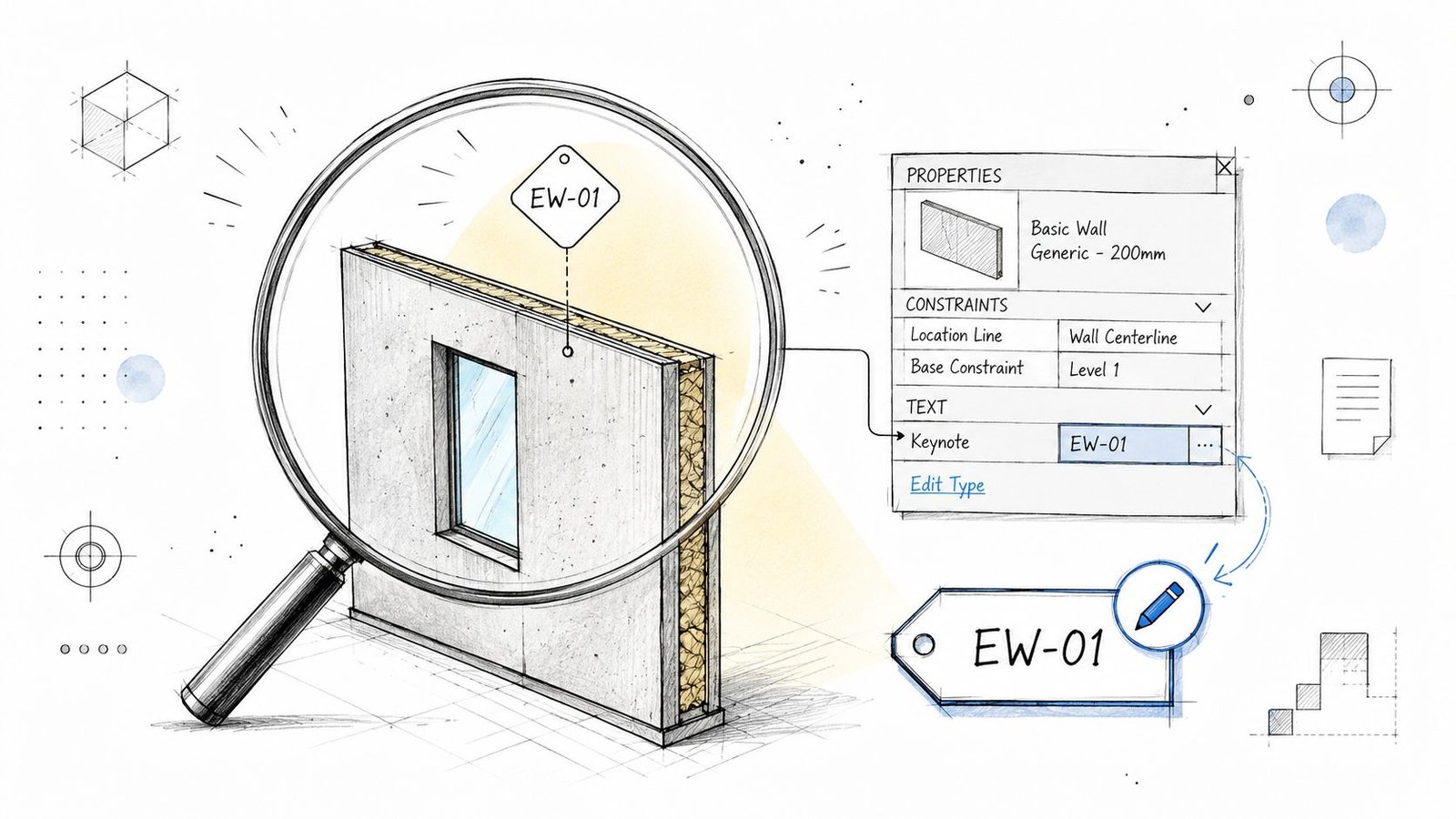
Assign element keynotes to types, not by memory
For standard assemblies, assign keynote values directly to the relevant families or types through the Keynote parameter in Identity Data. Consequently, the Revit keynote system becomes reliable. The note is no longer dependent on who tags it. The value is already embedded in the project data structure.
Good candidates include:
- Wall types
- Floor types
- Roof types
- Door and frame types
- Common ceiling assemblies
This should happen early. If your team is still deciding view graphics, sheet standards, and annotation behavior, it helps to align keynote strategy with your Revit view template standards, because visibility and annotation control tend to break down together, not separately.
Use material keynotes where finish information matters
Material keynotes belong in the Material Browser, usually on the Identity data for the material itself. They work well in interior elevations, enlarged plans, and details where multiple elements share the same surface finish but not the same family structure.
That's where material keynotes outperform element keynotes. They let one finish definition carry across multiple modeled conditions without creating duplicate note entries for each host object.
Keep user keynotes under control
User keynotes are useful for conditions that don't fit neatly into model-based annotation. They're also the easiest way for a standards-based system to get diluted.
Use them for exceptions, not defaults.
Field lesson: If most of your project annotation is happening as user keynotes, the model or the standards file probably isn't carrying enough information upstream.
A strong QA pass before the first sheet issue should confirm that major assemblies already have assigned keynote values. If users are making note choices ad hoc during documentation, the project is already behind on annotation governance.
Using Keynotes Effectively in Construction Documents
Value of Revit keynotes construction documents shows up on sheets, not in settings dialogs.
In wall sections and details, keynotes create a cleaner relationship between drawing information and specification intent. Instead of typing a long note beside each layer, the sheet can show the numbered callout once and let the Revit keynote legend handle the description. That keeps details readable and reduces the clutter that builds up when every leader carries full text.
Best use in detail-heavy sheets
On a strong CD set, details should not become isolated note islands.
For detail and section sheets:
- Tag material layers consistently rather than mixing text notes and keynotes in the same condition
- Use one legend per sheet instead of placing fragmented note blocks around each detail
- Set legend behavior to sheet-based filtering so only relevant keynotes appear
- Standardize leader styles in the template so annotation reads consistently from sheet to sheet
Revit can show keynote legends by project, by view, or by sheet. For most CD production, by-sheet behavior is the cleanest choice because it keeps the note list relevant and avoids oversized legends carrying unrelated information.
What happens with repeated notes
When the same keynote appears in multiple views on a sheet, Revit only lists it once in the legend. That automatic deduplication is one of the biggest efficiency gains in a mature keynotes Revit CD set workflow. Teams don't have to manually coordinate whether the same note was listed twice or whether the wording matches.
That matters even more during revisions. If the keynote description changes in the file, the legend behavior stays coordinated with the tags.
Handling non-modeled scope
A major weak point in many keynote workflows is non-modeled or partially modeled scope, especially site work, CAD-based details, and conditions without native Revit objects. Autodesk documentation and related guidance show that users often rely on workarounds such as user keynotes or custom leaders when geometry is incomplete or absent (Autodesk help on keynote legends and the gap around non-modeled conditions).
That's where teams need judgment. Not everything in the set will map neatly to modeled elements. Some sheets still need controlled note standards, and that's where a coordinated keynote strategy should work alongside a well-managed general notes approach for construction documents.
Solving Common Revit Keynote Problems
Even a solid setup can fail in production if nobody knows what the symptoms mean. Most keynote problems are straightforward once you stop treating them like random Revit glitches.
Fast diagnosis for common failures
| Problem | Likely cause | Fix |
|---|---|---|
| Question marks instead of keynote values | Broken or missing keynote file link | Relink the file in Keynoting Settings |
| Blank tag after clicking an element | Tool mode is wrong or the type has no keynote assigned | Confirm you're placing an element keynote and check the type parameter |
| Legend shows too many notes | Legend filter is pulling a wider range than intended | Set the legend to filter by sheet |
| Edited note text doesn't change on sheets | Revit hasn't reread the external file | Reload the keynote file |
| Wrong description appears | Duplicate or poorly managed entries in the file | Clean the file and keep each code unique |
Why standards matter more than fixes
These aren't really software problems. They're governance problems.
If keynotes keep breaking, the office usually has one of three issues:
- No ownership of the keynote file
- No QA check before sheet issue
- No rule for when user keynotes are acceptable
Once firms treat keynotes as a production standard instead of a user preference, the troubleshooting load drops fast. The goal isn't to memorize fixes. The goal is to make the system boring, stable, and repeatable.
The best keynote workflow is the one nobody has to argue about at deadline.
Building a Scalable Keynote Standard for Your Firm
A workable project setup is good. A firm-wide standard is better. That's where keynotes stop being a Revit feature and start becoming an operational asset.
The maintenance side is the part most tutorials skip. Because keynote data lives in an external file, firms have to manage version control, naming conventions, and reload discipline if they want consistency across multiple projects (guidance on keynote governance and downstream maintenance). Without that layer, every project starts customizing the file, adding near-duplicates, and slowly weakening the standard.
What governance should look like
Someone needs to own the master file.
That doesn't mean one person writes every keynote forever. It means one role, usually a BIM manager or documentation lead, controls additions, naming logic, and release practice. Otherwise the file fills with duplicate descriptions, inconsistent terminology, and project-specific clutter that nobody trusts.
A practical governance model includes:
- A master file owner who approves edits
- A change request process for new keynote entries
- Version naming rules so teams know what standard they're using
- Reload checkpoints during major documentation milestones
Why this protects margin
Annotation inconsistency creates rework. Rework eats time. Time loss in CDs usually shows up as rushed coordination, avoidable sheet cleanup, and unreliable issue sets.
A managed keynote standard helps prevent that. It also supports predictable delivery across multiple teams, especially when firms are trying to avoid the kind of standard drift that often shows up in templates and production files over time. If that problem sounds familiar, it usually ties back to broader Revit template drift across projects, not just keynote behavior alone.
The point isn't elegance. It's control. A scalable keynote standard lets different project teams produce annotation that reads like it came from one office, one process, and one set of decisions.
Conclusion
Firms that stick with manual notes usually think they're avoiding complexity. What they're really doing is accepting more risk later. A disciplined keynote workflow removes repeated typing, reduces note drift, and gives the CD set a single source of truth for annotation.
That's what production maturity looks like in practice. Not more software tricks. Better control over how information moves through the project.
If your team is still fighting sheet-by-sheet note updates, inconsistent legends, or unreliable annotation standards, the issue probably isn't effort. It's system design.
If you need help building a reliable keynote workflow, tightening your Revit standards, or improving documentation consistency across active projects, contact BIM Heroes for Revit production support.